Configuring meeting types and access methods is a powerful way to control access and meeting settings tailored to specific needs. What you can control differs between Cisco Meeting Server and Pexip, depending on their native support.
Cisco Meeting Server
Introduction
Before configuring meeting types and access methods, it is important to understand how Cisco Meeting Server manages meeting settings.
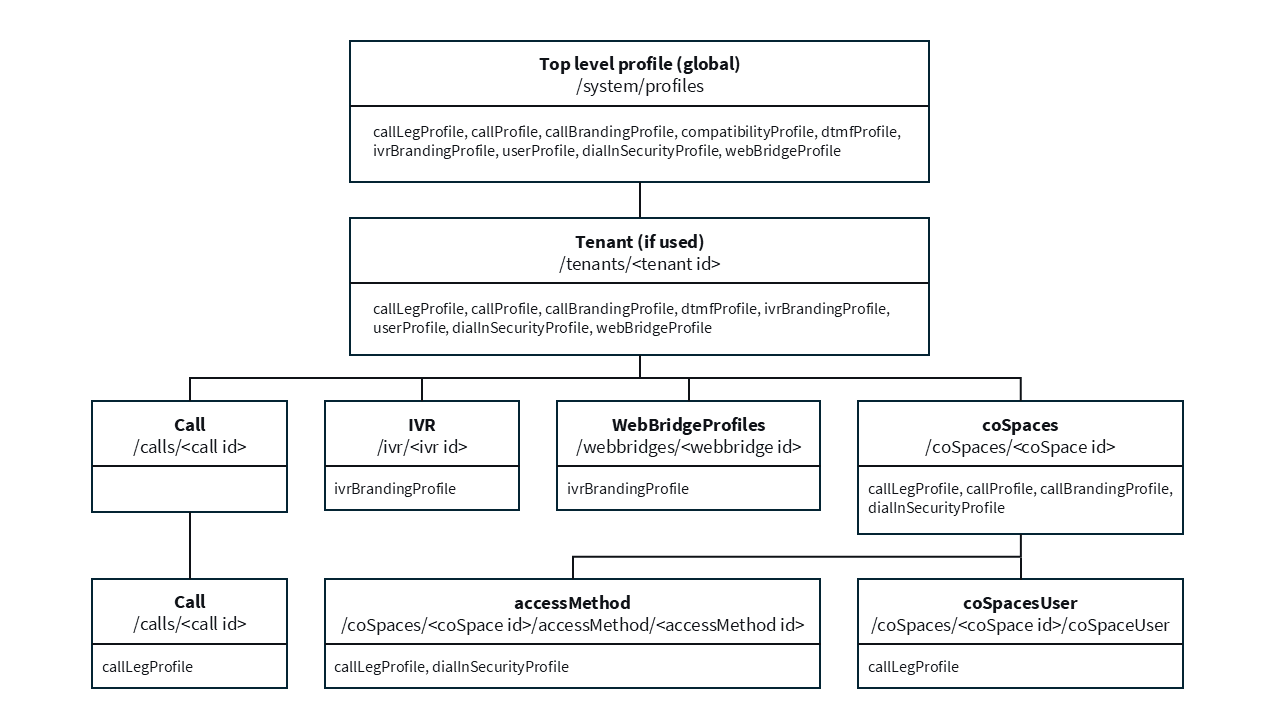
- Values in lower profiles in the image above will override those settings set above.
- If no profile is set at one level, the object inherits values from the profile above.
- A specific setting will be used from the first matching profile that contains that setting, by the priority stated in the image above.
- If a specific setting is left empty, it will be reset, and the next available profile settings will be used instead.
The different profiles and where they can be set(in priority):
callLegProfile– Settings for a participantcallLegs/<id>paticipants/<id>coSpaces/<id>/accessMethods/coSpaces/<id>members/coSpaces/<id>tenants/<id>system/profiles
callProfile– Settings for a callcalls/<id>coSpaces/<id>tenants/<id>system/profiles
lobbyProfile– Settings on how you can connectcoSpaces/<id>/accessMethods/coSpaces/<id>/coSpaceUsers/coSpaces/<id>tenants/<id>system/profiles
dialInSecurityProfile– Security settingscoSpaces/<id>/accessMethods/<id>coSpaces/<id>/coSpaceUsers/<id>coSpaces/<id>tenants/<id>system/profiles
callBrandingProfile– Branding settingscoSpaces/<id>(requires a license)tenants/<id>(requires a license)system/profiles
ivrBrandingProfile– IVR branding settingstenants/<id>(requires a license)system/profiles
Setting up the Cisco Meeting Server
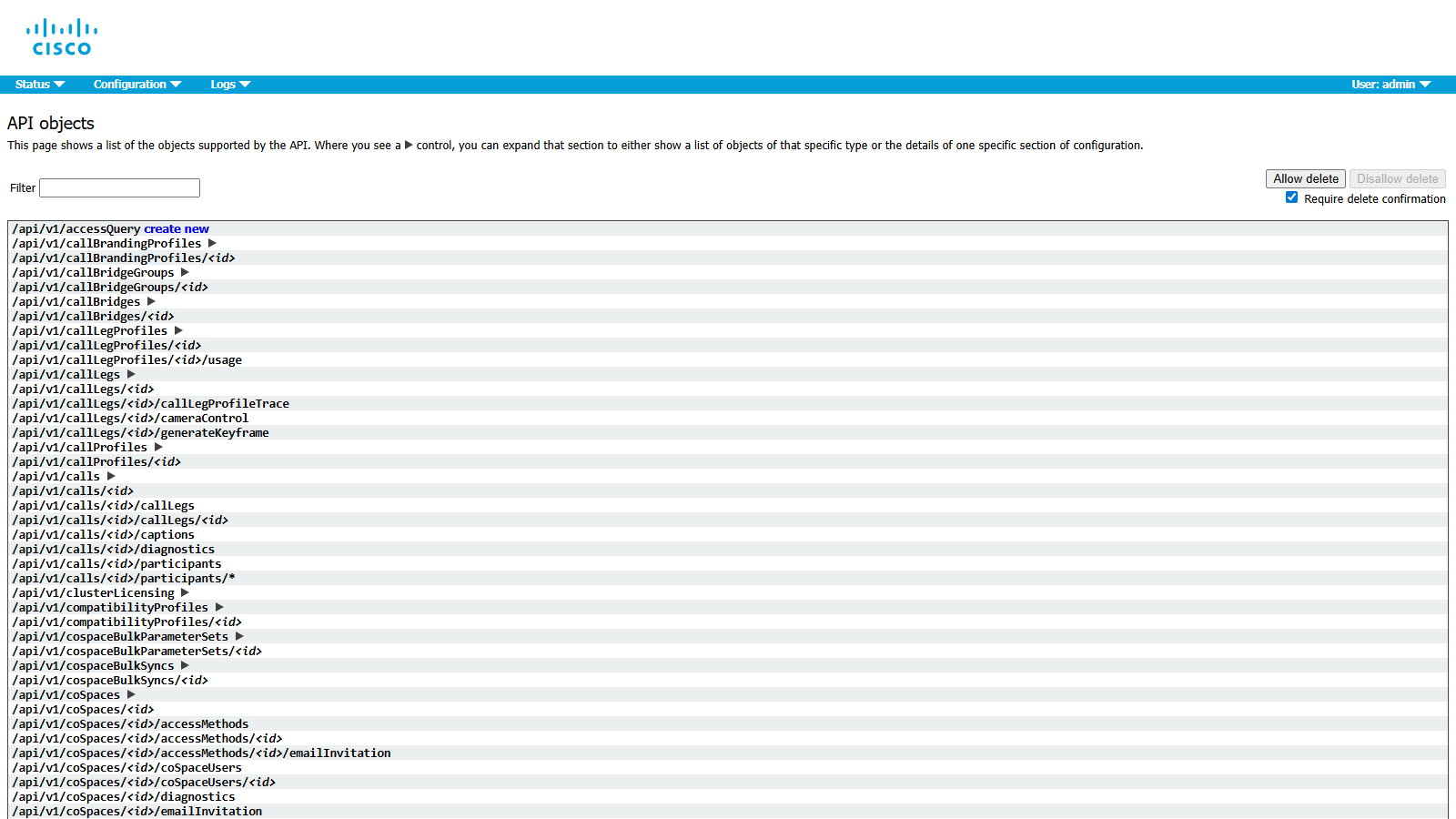
Before you can configure Mividas, you must first configure the profiles you wish to use in the Cisco Meeting Server. The easiest way to do this is to go to the API page in the web interface of the CMS, e.g. https://cms01.example.com/api_explorer.html. If you have already set up profiles that you wish to use, find and copy the object ID of those profiles, have them ready, and then proceed to Link profiles between Mividas Core and the CMS.
NOTE: For detailed information about all available settings and what they do, please refer to Cisco’s documentation here: https://www.cisco.com/c/en/us/support/conferencing/meeting-server/products-programming-reference-guides-list.html
For each profile you wish to use, find them in the tree and click ( ) next to it, then click Create new. Fill in all the settings you wish to use, refer to Cisco’s documentation linked above for detailed information about each setting. When you have filled in all the settings you wish to use, click Create to create the profile. After this, take note of the object ID of the profile you created, which will be needed in the next steps.
Repeat this for all profiles and settings you wish to use.
Link profiles between Mividas Core and the CMS
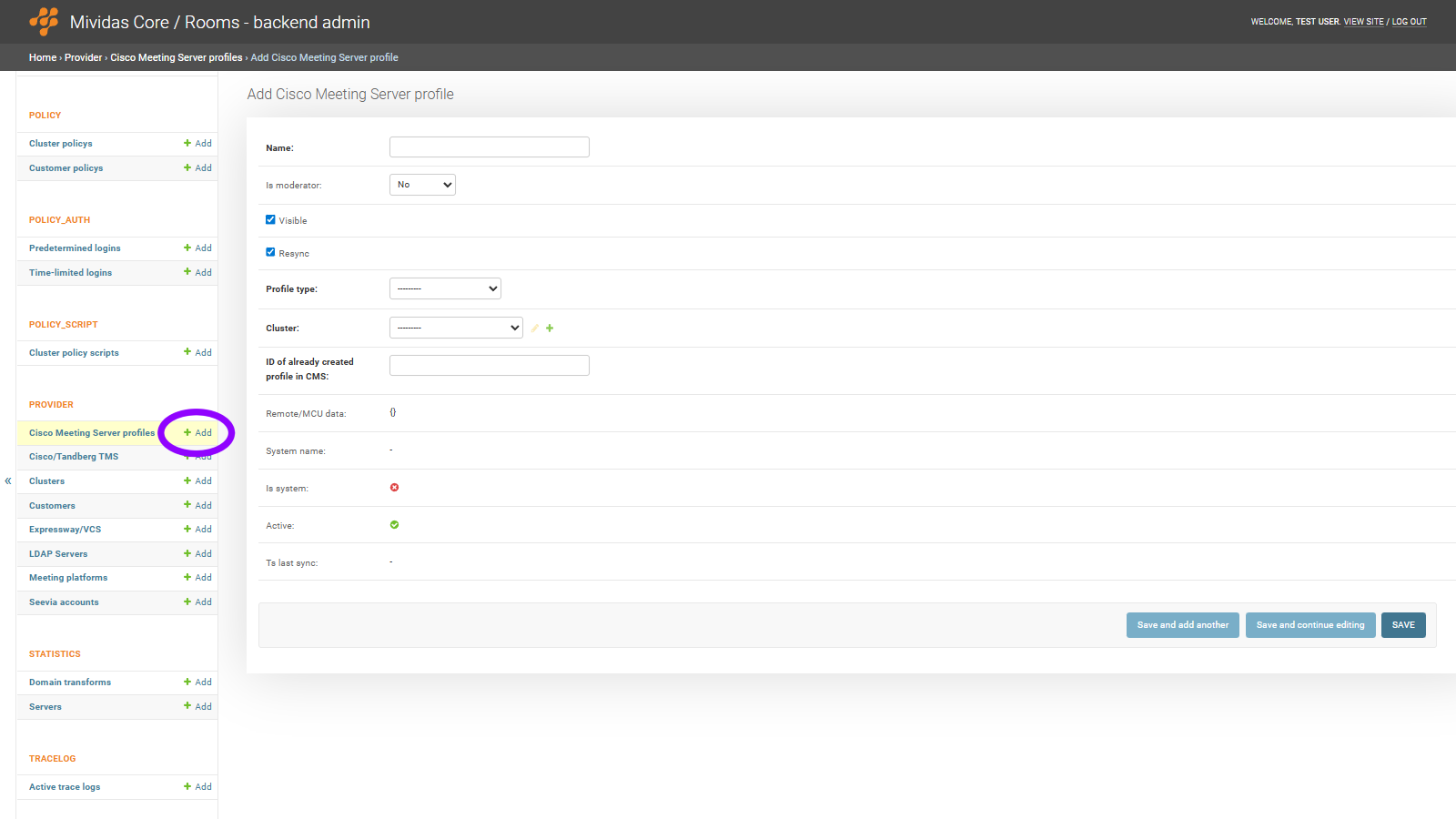
Log in to Mividas Core with your admin account, and go to admin > backend admin > provider > Cisco Meeting Server profiles and click
Add.
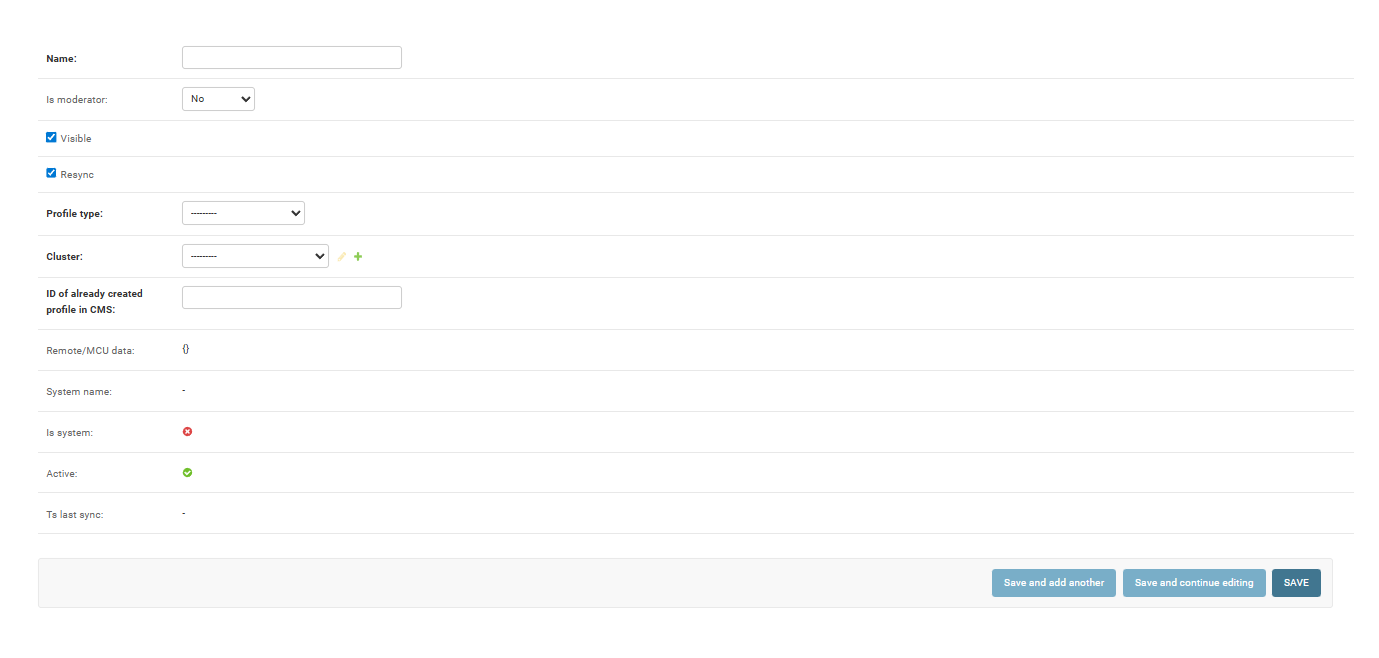
When everything is set, click to save the profile link. Continue to add all profiles you wish to use.
Create predefined custom meeting types in Mividas Core
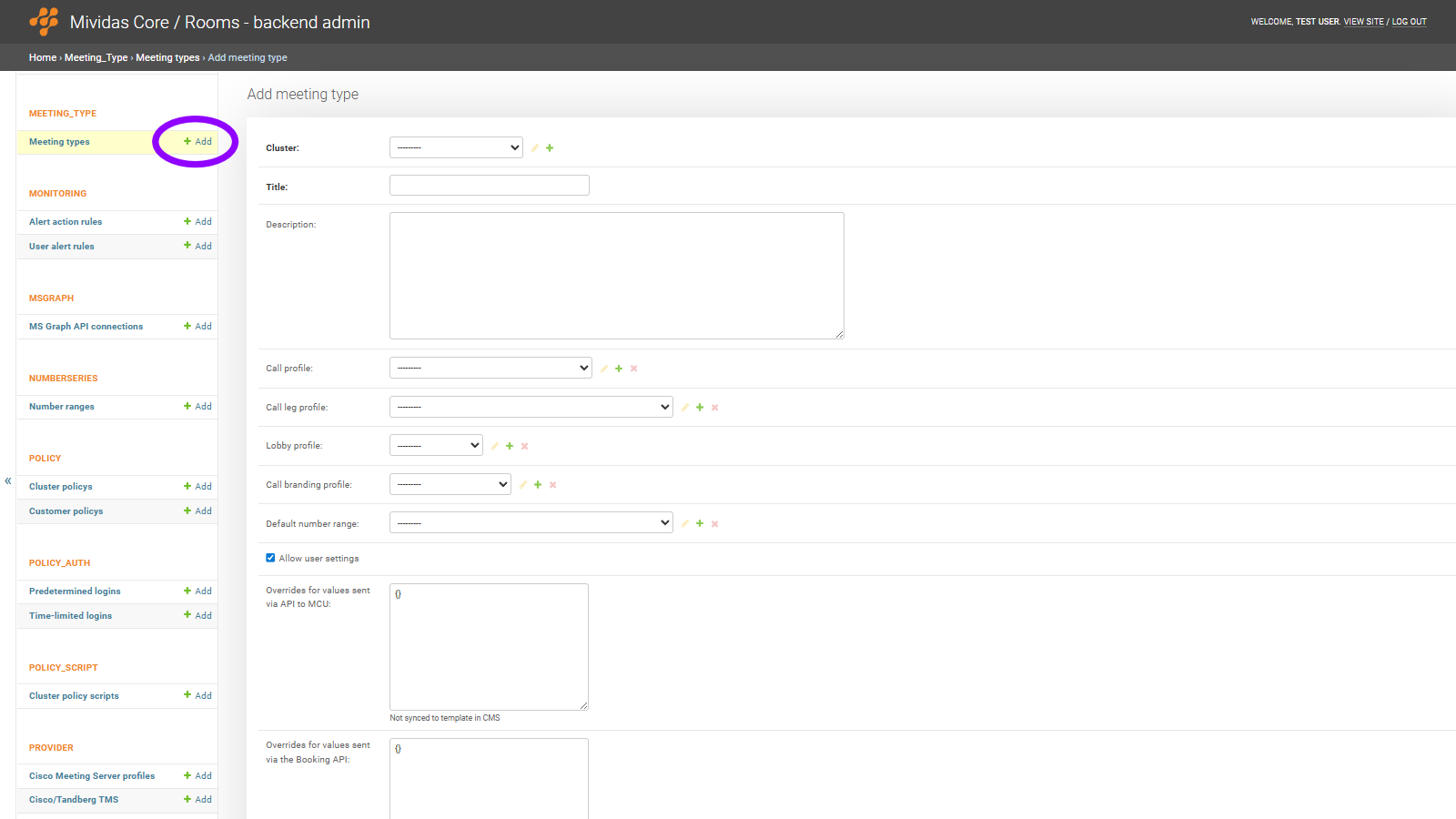
Log in to Mividas Core with your admin account, and go to admin > backend admin > meeting_type > Meeting types and click
Add.
Start by entering a Title and selecting a Cluster for the meeting type, then click to reveal the remaining options.

| Option | Description |
|---|---|
| Key | Enter a key to use to match this meeting type from Mividas Meeting Portal and invite templates. E.g. custom_meeting_1 |
| Delete | If not yet saved: Click (
) to remove that row. If already saved: Check the box and click to remove that row. |
| Add another Meeting type match key | Adds another row to add another meeting type match key. |

| Option | Description |
|---|---|
| Customer | Select the customer this override applies to. Each customer can only have one override per meeting type. |
| Show in Core | Override whether this meeting type is visible when creating static meeting rooms in Mividas Core for this specific customer. Unknown – Use the default setting from the meeting type. Yes – Show this meeting type in Mividas Core for this customer. No – Hide this meeting type in Mividas Core for this customer. |
| For all users | Override whether this meeting type is visible in the Mividas Meeting Portal for all users of this customer. Unknown – Use the default setting from the meeting type. Yes – Show this meeting type in the Mividas Meeting Portal for all users in this customer. No – Hide this meeting type in the Mividas Meeting Portal for this customer. |
| Meeting type key | A customer-specific key that can be used to look up this meeting type instead of the default match keys. This allows different customers to reference the same meeting type using different keys. |
| Delete | If not yet saved: Click (
) to remove that row. If already saved: Check the box and click to remove that row. |
| Add another override for customer | Adds another row to add another override. |

| Option | Description |
|---|---|
| Enabled | Check to enable this access method. |
| Title | Enter a title for this access method. |
| Call leg profile | Select which call leg profile to use for this access method. |
| Lobby profile | Select which lobby profile to use for this access method. |
| Always create | When enabled, this access method will always be created for rooms using this meeting type, regardless of other conditions. When disabled, the access method is only created when matching conditions are met, such as a moderator PIN being set. |
| Fallback setting | When enabled, this access method is used as the fallback for all additional addresses matching the same member scope. When disabled, the access method is only used when explicitly matched. |
| Is the default address for room | When enabled, this access method will be used as the primary address for the meeting room. Only one access method per meeting type can be set as the default. Enabling this will automatically unset the default flag on other access methods in the same meeting type. |
| System ID | Defines the role of this access method. Only one guest and one moderator access method can exist per meeting type; any additional access methods must be set to None. None – No specific role assigned. Used for additional access methods such as member or directory entries. Guest – This access method is for guest participants joining without moderator privileges. Moderator – This access method is for moderator participants with full meeting control. |
| Member scope | Defines who can use this access method to join the meeting. None – No specific scope. The access method is not restricted. Public – Anyone can join using this access method. Private – Only specific members or moderators can join. Member – Only organization members can join. Directory – Only users listed in the directory can join. |
| Overrides for values sent via API to MCU | A JSON object with additional or overriding values that will be sent to the provider API for this specific access method. These values are not synced to the provider template. |
| Delete | If not yet saved: Click (
) to remove that row. If already saved: Check the box and click to remove that row. |
| Add another access method | Adds another row to add another access method. |
When everything is set, click to save the meeting type. To delete the meeting type, click .
Pexip
Create predefined custom meeting types in Mividas Core
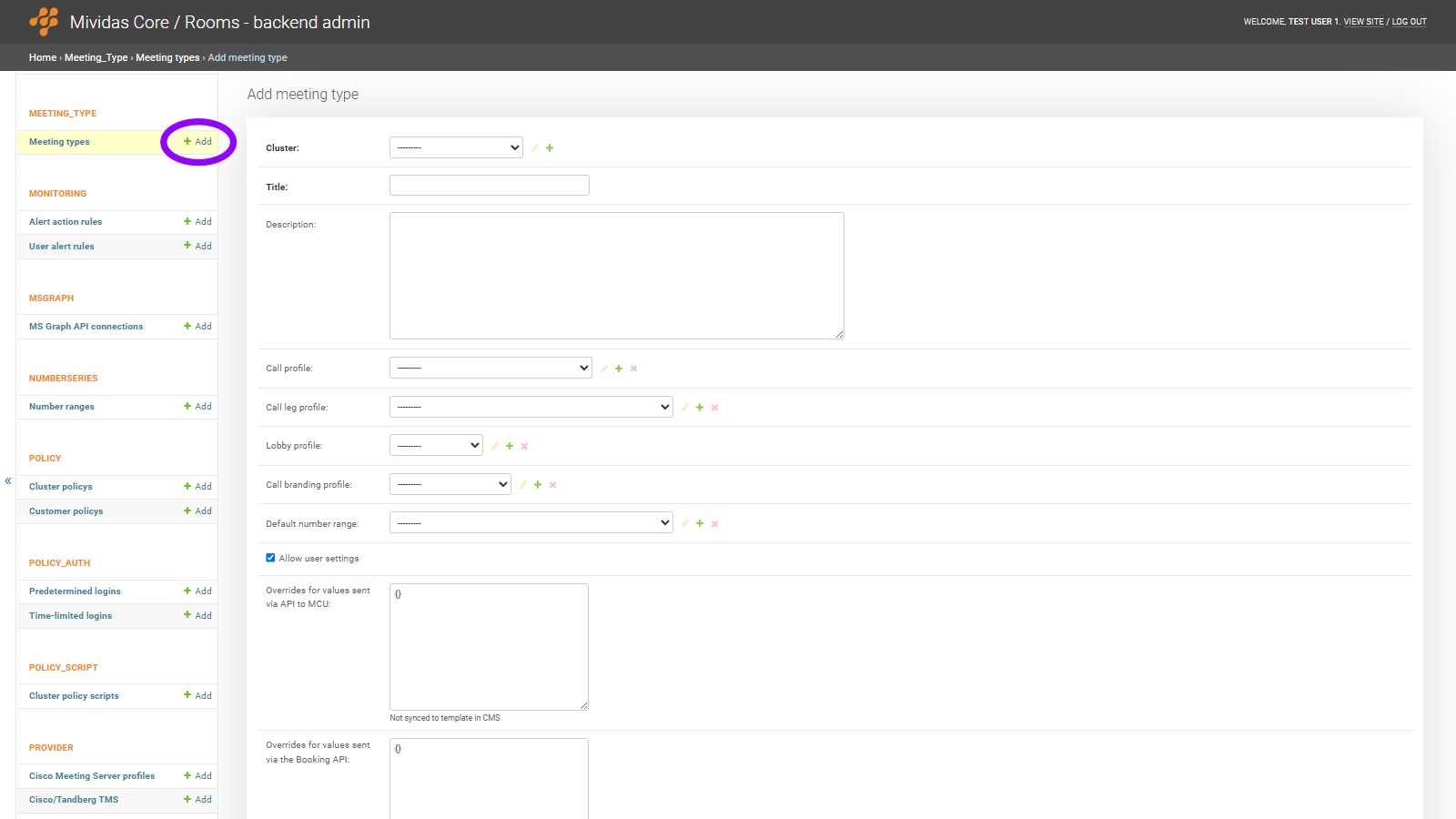
Log in to Mividas Core with your admin account, and go to admin > backend admin > meeting_type > Meeting types and click
Add.
| Option | Description |
|---|---|
| Key | Enter a key to use to match this meeting type from Mividas Meeting Portal and invite templates. E.g. custom_meeting_1 |
| Delete | If not yet saved: Click (
) to remove that row. If already saved: Check the box and click to remove that row. |
| Add another Meeting type match key | Adds another row to add another meeting type match key. |
| Option | Description |
|---|---|
| Customer | Select the customer this override applies to. Each customer can only have one override per meeting type. |
| Show in Core | Override whether this meeting type is visible when creating static meeting rooms in Mividas Core for this specific customer. Unknown – Use the default setting from the meeting type. Yes – Show this meeting type in Mividas Core for this customer. No – Hide this meeting type in Mividas Core for this customer. |
| For all users | Override whether this meeting type is visible in Mividas Meeting Portal for all users belonging to this customer. Unknown – Use the default setting from the meeting type. Yes – Show this meeting type in the Mividas Meeting Portal for all users in this customer. No – Hide this meeting type in the Mividas Meeting Portal for this customer. |
| Meeting type key | A customer-specific key that can be used to look up this meeting type instead of the default match keys. This allows different customers to reference the same meeting type using different keys. |
| Delete | If not yet saved: Click (
) to remove that row. If already saved: Check the box and click to remove that row. |
| Add another override for customer | Adds another row to add another override. |
| Option | Description |
|---|---|
| Enabled | Check to enable this access method. |
| Title | Enter a title for this access method. |
| Call leg profile | Select which call leg profile to use for this access method. |
| Lobby profile | Select which lobby profile to use for this access method. |
| Always create | When enabled, this access method will always be created for rooms using this meeting type, regardless of other conditions. When disabled, the access method is only created when matching conditions are met, such as a moderator PIN being set. |
| Fallback setting | When enabled, this access method is used as the fallback for all additional addresses matching the same member scope. When disabled, the access method is only used when explicitly matched. |
| Is the default address for room | When enabled, this access method will be used as the primary address for the meeting room. Only one access method per meeting type can be set as the default. Enabling this will automatically unset the default flag on other access methods in the same meeting type. |
| System ID | Defines the role of this access method. Only one guest and one moderator access method can exist per meeting type; any additional access methods must be set to None. None – No specific role assigned. Used for additional access methods such as member or directory entries. Guest – This access method is for guest participants joining without moderator privileges. Moderator – This access method is for moderator participants with full meeting control. |
| Member scope | Defines who can use this access method to join the meeting. None – No specific scope. The access method is not restricted. Public – Anyone can join using this access method. Private – Only specific members or moderators can join. Member – Only organization members can join. Directory – Only users listed in the directory can join. |
| Overrides for values sent via API to MCU | A JSON object with additional or overriding values that will be sent to the provider API for this specific access method. These values are not synced to the provider template. |
| Delete | If not yet saved: Click (
) to remove that row. If already saved: Check the box and click to remove that row. |
| Add another access method | Adds another row to add another access method. |
When everything is set, click to save the meeting type. To delete the meeting type, click .
Create a custom invitation template for your meeting type
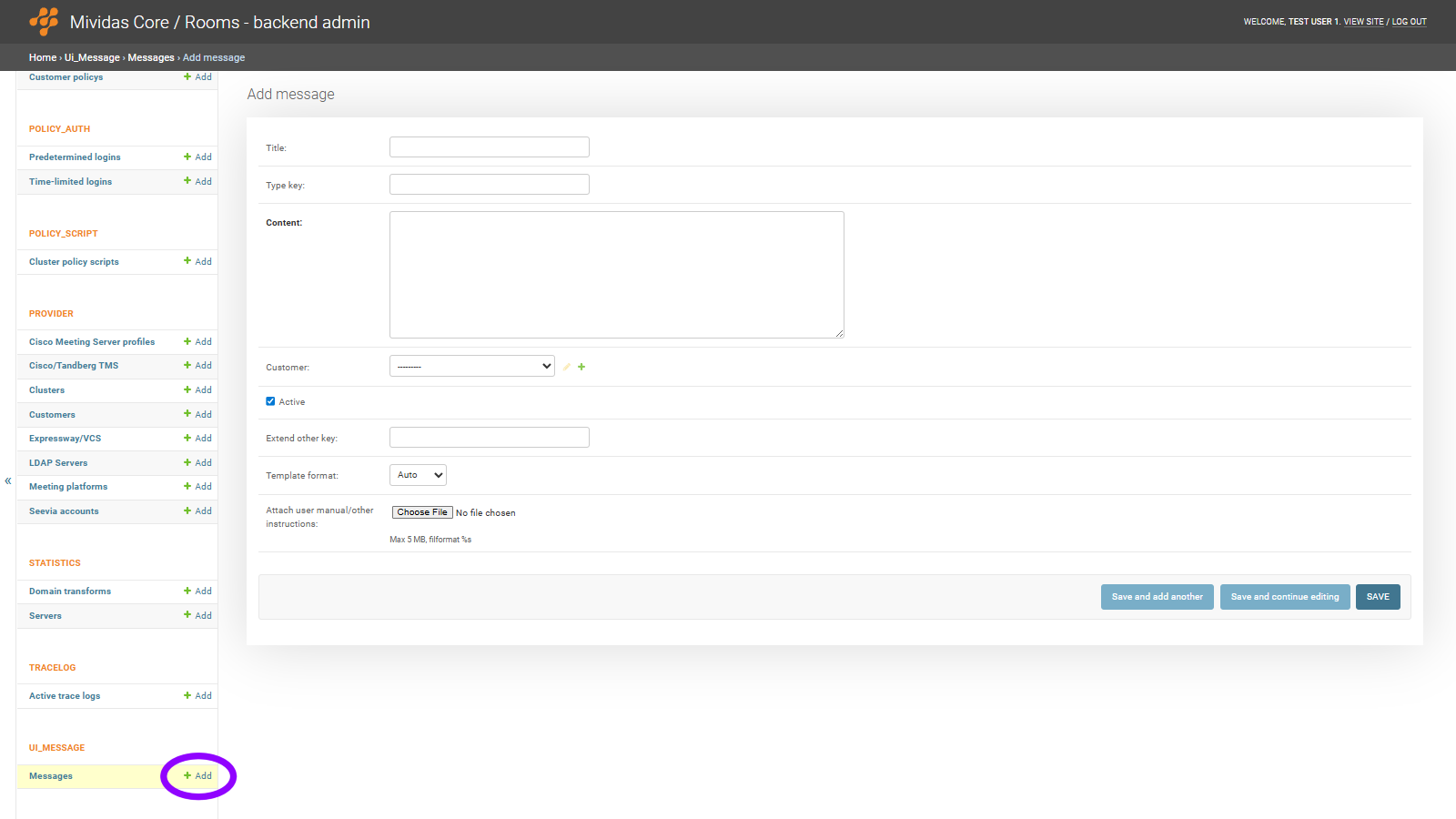
Log in to Mividas Core with your admin account, and go to admin > backend admin > ui_message > Messages and click
Add.
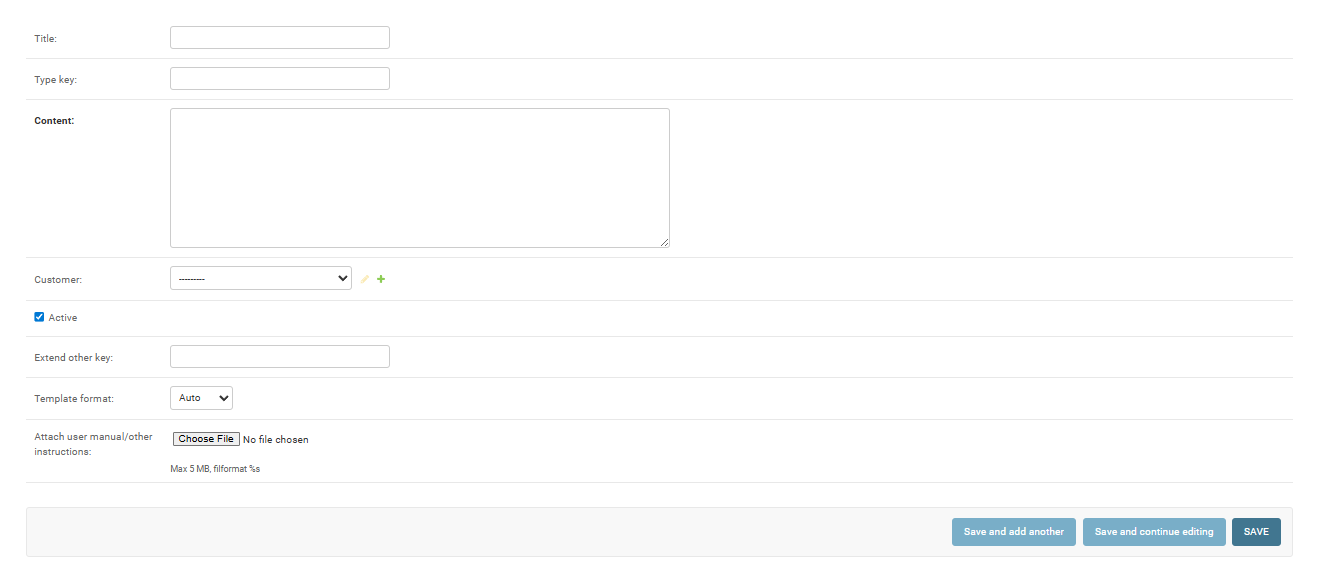
When everything is set, click to save the template.
Edit the template in Mividas Core
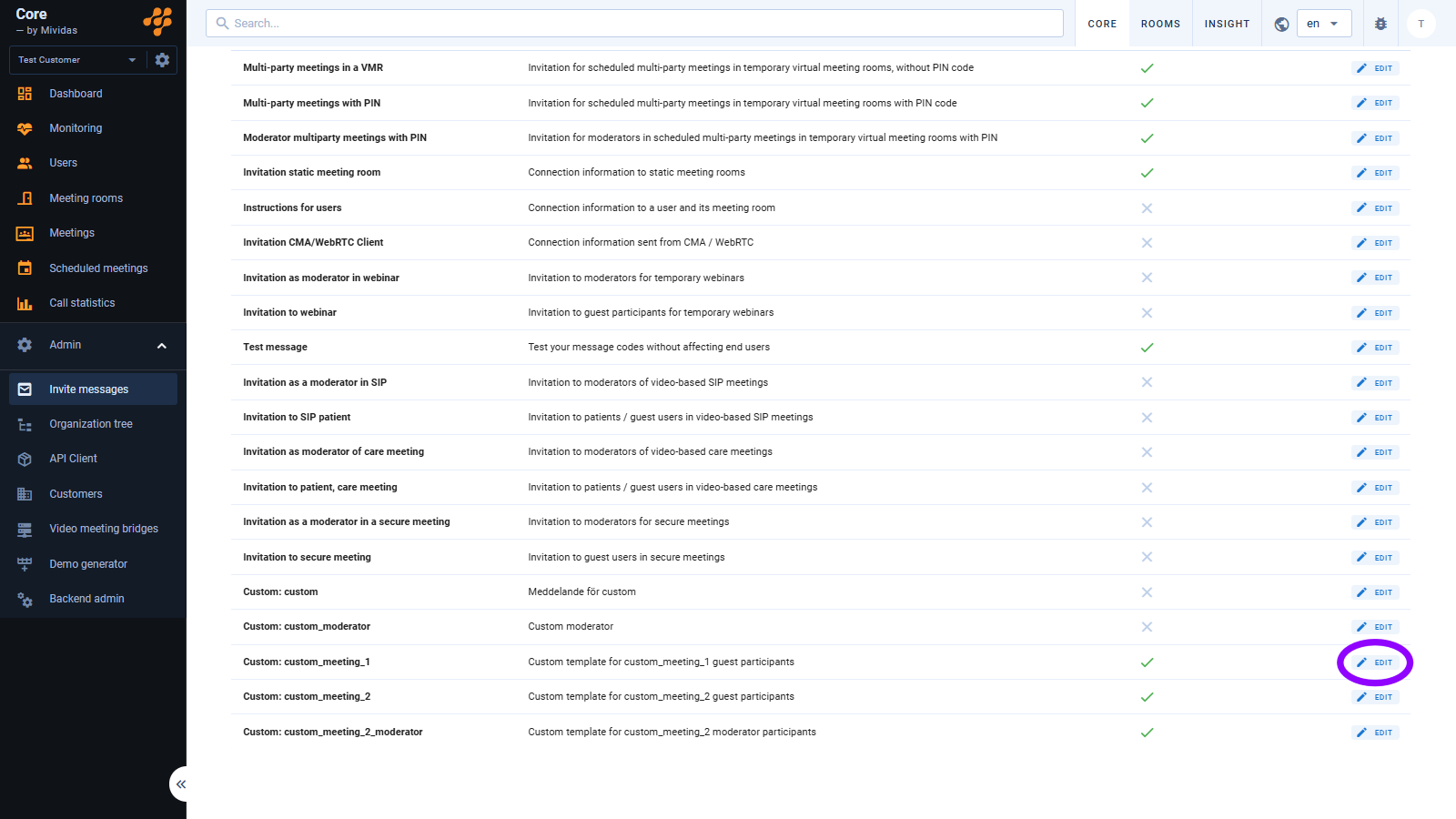
Log in to Mividas Core with your admin account, and go to admin > invite messages. Find the template that you have created, it should be towards the bottom of the list and have the prefix Custom:, e.g. Custom: custom_meeting_1. Click
to edit the template.
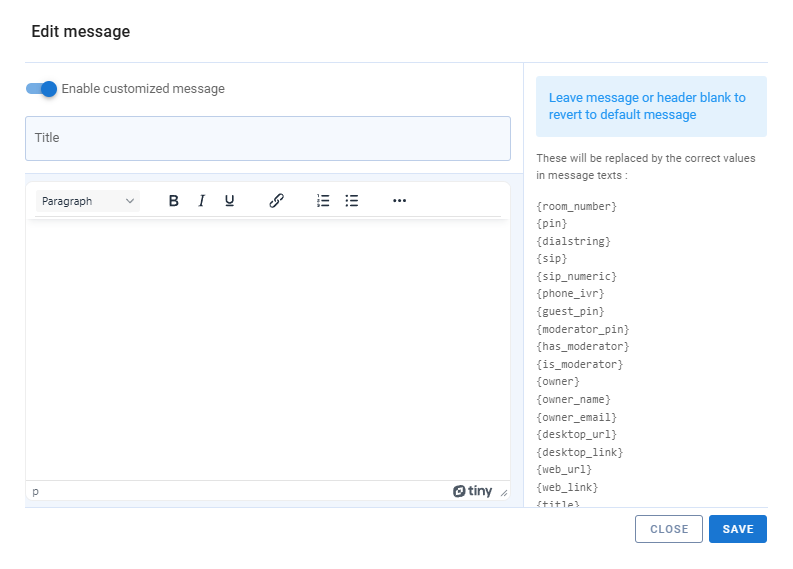
| Option | Description |
|---|---|
 Enable custom message Enable custom message | Toggle to disable, or enable, the custom message. |
 | Edit the title of your custom message. |
 | Edit the content of your custom message. |
 | This displays information, replacement codes, and conditional variables. Read more about them here. |
Click to save or click to close without saving.
Enable scheduling of your custom meeting type from Mividas Meeting Portal
To be able to schedule meetings using your custom meeting type, you must manually enable it for it to be visible in Mividas Meeting Portal.
Add meeting type
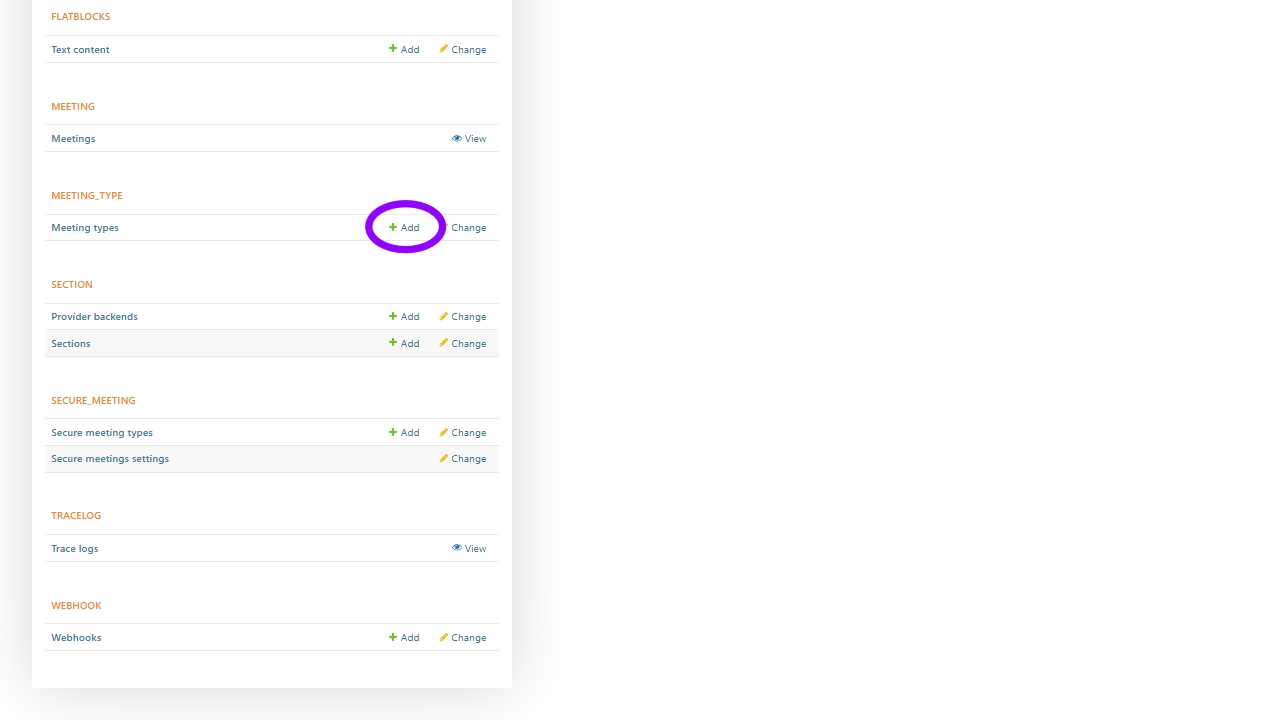
Log in to Mividas Meeting Portal with your admin account, and go to backend admin > MEETING_TYPE > Meeting types and click
Add.
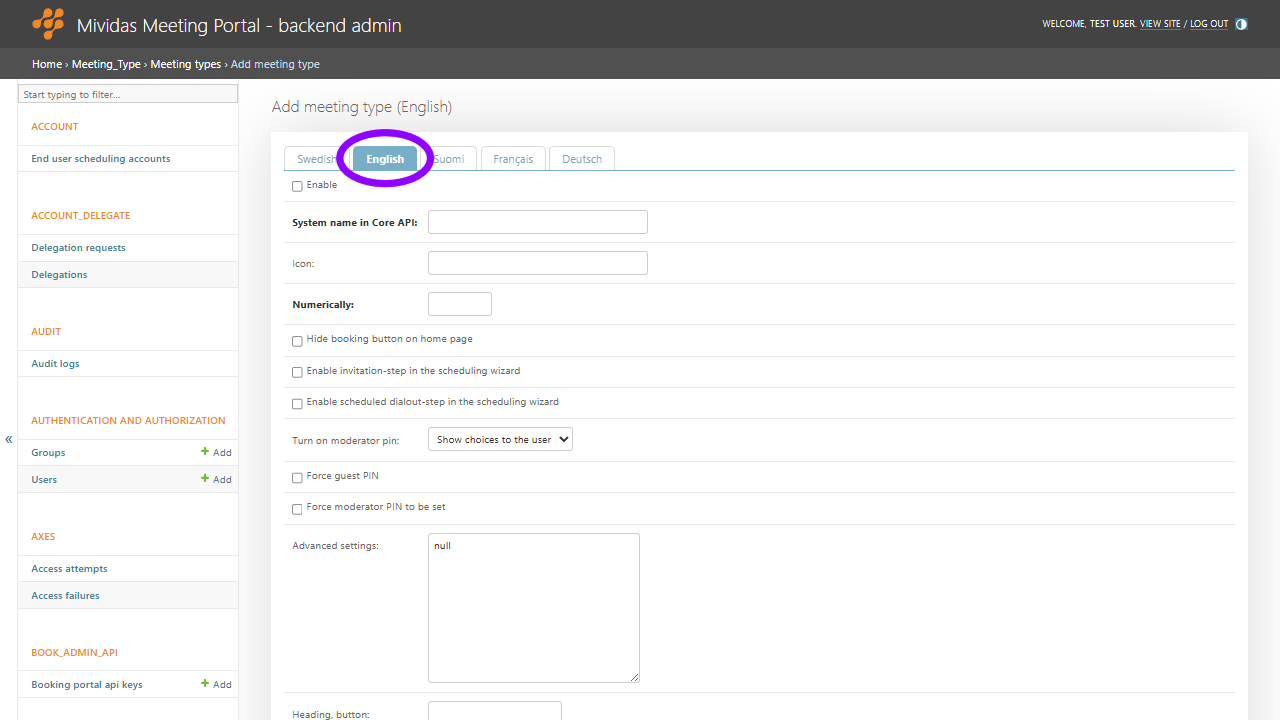
This will enable scheduling for this meeting type in the Mividas Meeting Portal and the Mividas Outlook Add-in.
Start by selecting your preferred Language. If only one language is set up, that language will be used for all languages.
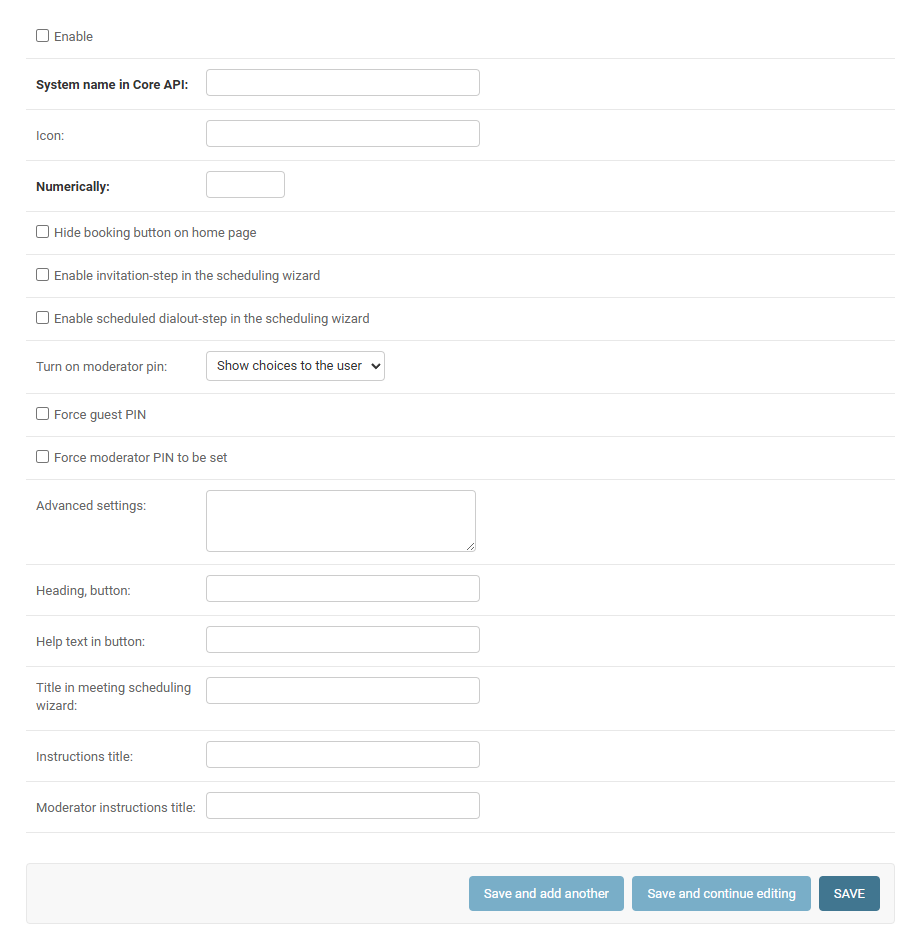
When everything is set, click to save. You should now be able to schedule these meetings from Mividas Meeting Portal and Mividas Outlook add-in.