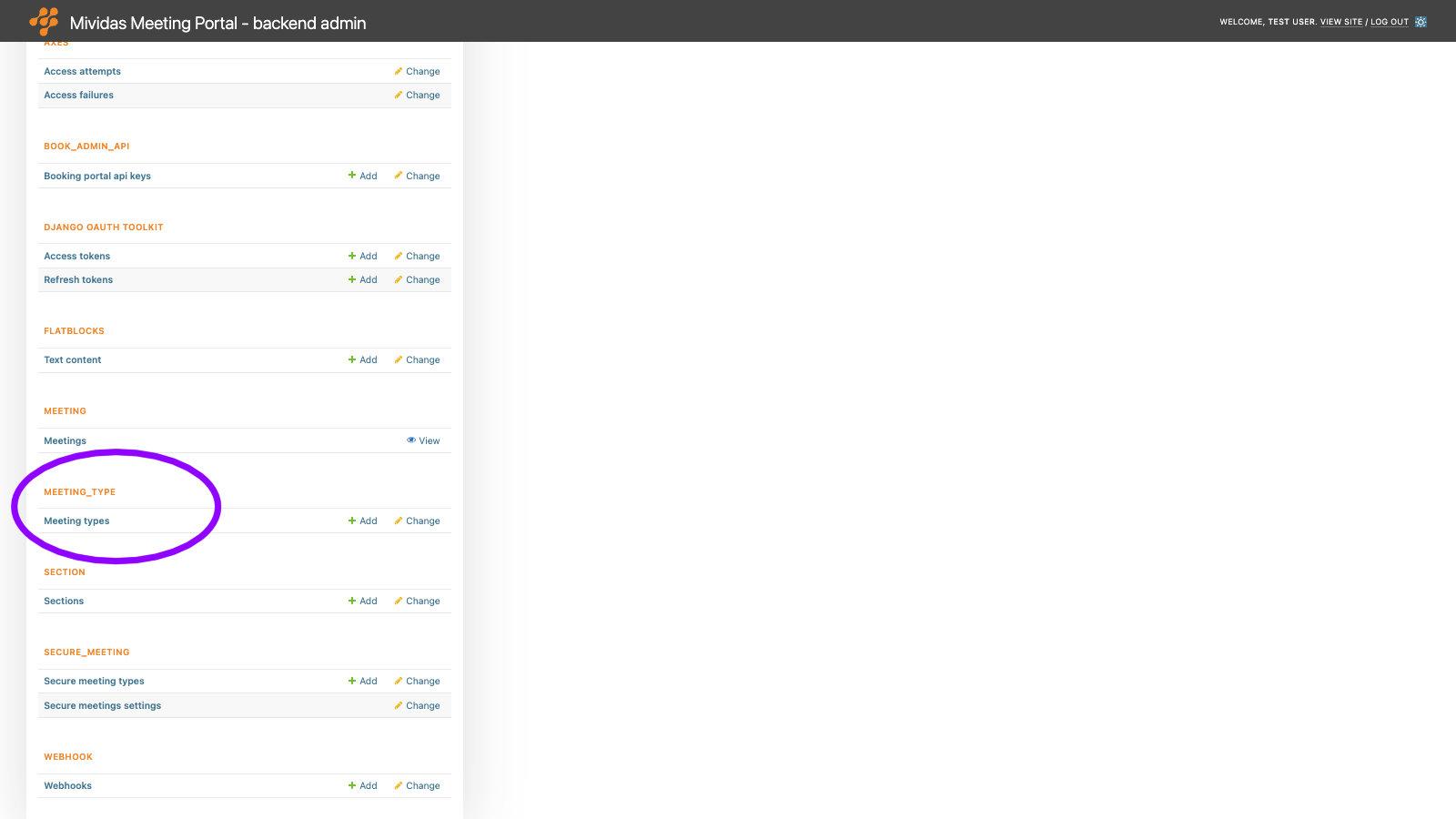
Warning: Changes made here affect low-level platform behavior and can disrupt service if misconfigured. Only make changes if you understand their impact, and always use the regular Mividas Meeting Portal interface when the same setting is available there.
Configure the meeting types users can choose from when scheduling a meeting in the Mividas Meeting Portal. Each enabled meeting type is shown as a booking button on the start page. The meeting type controls the scheduling form, the invitation steps, and how the meeting is sent to Mividas Core.
NOTE: For a complete guide to setting up custom meeting types and access methods, see Configure and use custom meeting types and access methods.
Secure meeting types have their own page, see SECURE_MEETING › Secure meeting types.
| Option | Description |
|---|---|
| Add meeting type + | Add a meeting type. |
Built-in meeting types
The built-in meeting types are created automatically; they vary depending on your license. You can change their settings, but you can’t remove them permanently. A deleted built-in meeting type is created again with its default settings. To hide one, uncheck Enable instead.
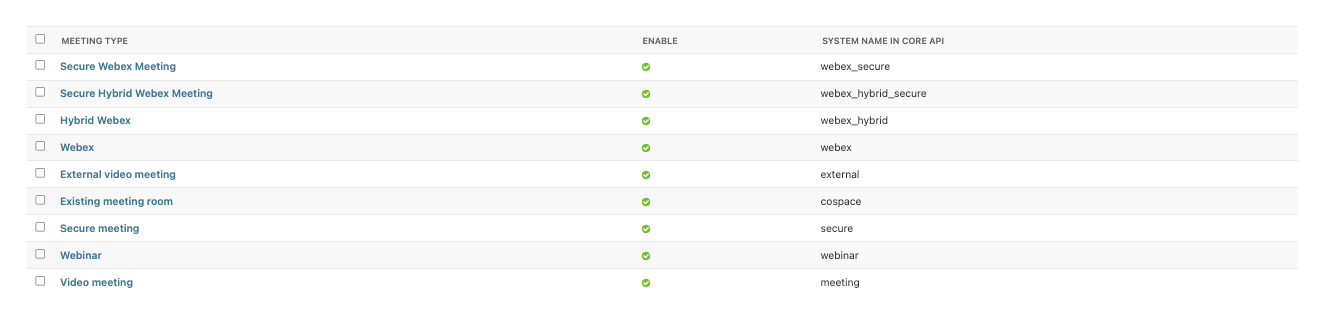
| Meeting type | System name in Core API |
|---|---|
| Video meeting | meeting |
| Webinar | webinar |
| Existing meeting room | cospace |
| External video meeting | external |
| Secure meeting | secure |
| Webex | webex |
| Hybrid Webex | webex_hybrid |
| Secure Webex | webex_secure |
| Secure hybrid Webex | webex_hybrid_secure |
List view
| Column | Description |
|---|---|
| Meeting type | The title of the meeting type, as shown on the scheduling button. |
| Enable | Shows if the meeting type is enabled. |
| System name in Core API | The meeting type key that is sent to Mividas Core. |
Add or edit a meeting type
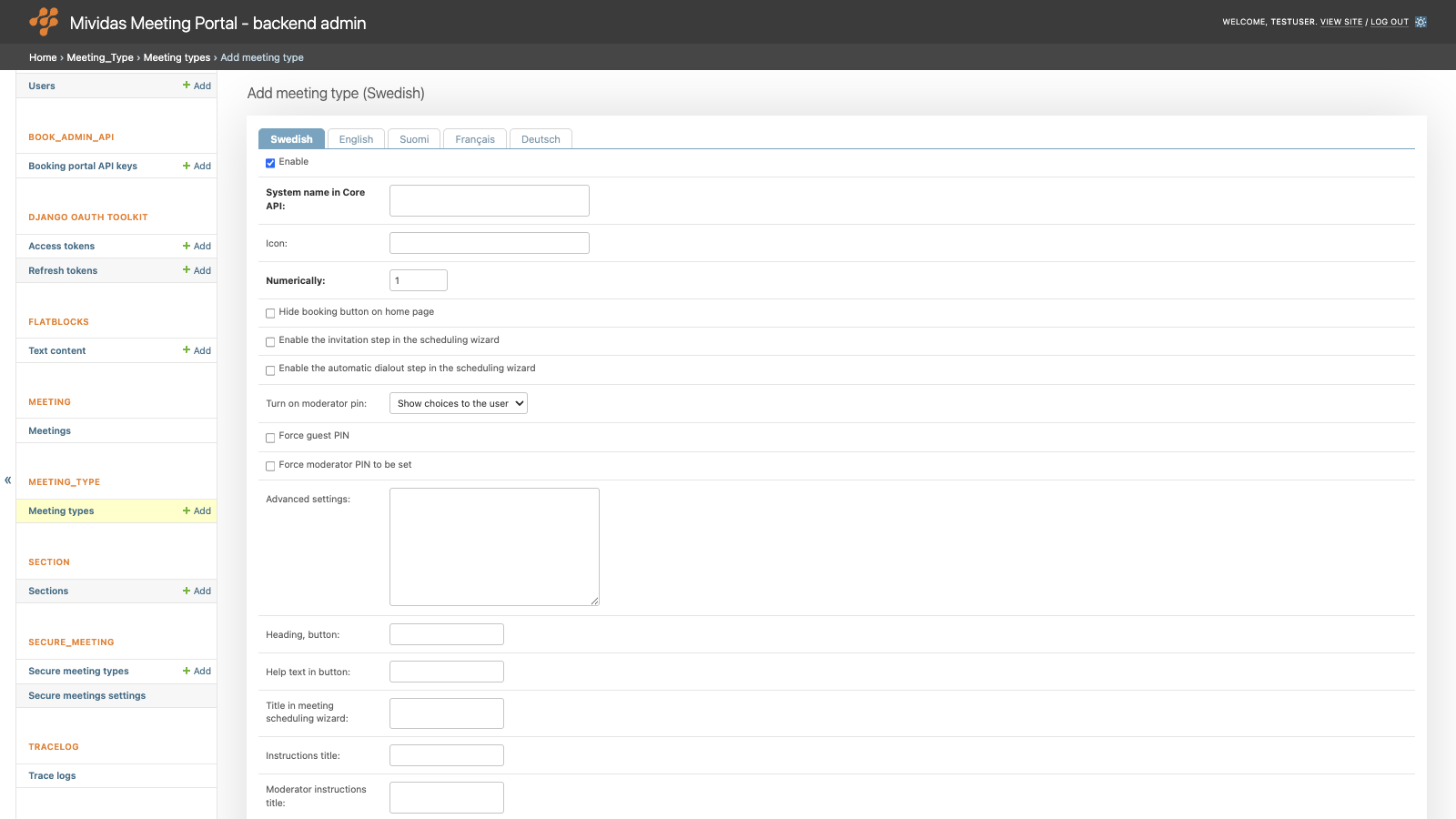
Select a language tab at the top of the form to edit the texts in that language. The fields marked as translatable below have one value per language. Changes take effect in the portal within about ten seconds.
| Field | Description |
|---|---|
| Enable | When unchecked, the meeting type isn’t available in the portal. |
| System name in Core API | Required. The meeting type key sent to Mividas Core when a meeting is scheduled. Mividas Core uses the key to find a meeting type with a matching Meeting type match key, and applies its settings, e.g., call profiles and access methods. |
| Icon | The icon on the booking button. Enter a Font Awesome 5 icon name without the fa- prefix, see Available icons below. |
| Numerically | Required. The sort order of the booking buttons on the start page. Lowest first. |
| Hide booking button on home page | Hides the booking button from the start page. The meeting type can still be used in other ways, e.g., from the Outlook add-in or the API. |
| Enable invitation-step in the scheduling wizard | Shows the steps for inviting participants after a meeting is scheduled, as well as the invitation tabs on the meeting page. |
| Enable scheduled dialout-step in the scheduling wizard | Shows the steps for adding systems that are called automatically when the meeting starts. |
| Turn on moderator pin | Controls the moderator PIN code, see Moderator PIN options below. |
| Force guest PIN | Requires a PIN code for guests. If Mividas Core requires a PIN code, it’s always required. |
| Force moderator PIN to be set | Requires a PIN code for moderators. If Mividas Core requires a moderator PIN code, it’s always required. |
| Advanced settings | More settings in JSON format, see Advanced settings below. |
| Heading, button | The title of the meeting type, shown on the booking button. |
| Help text in button | The help text shown in the booking button. |
| Title in meeting scheduling wizard | The heading of the scheduling form. If empty, Heading, button is used. |
| Instructions title | The name of the participant’s instructions tab on the meeting page. |
| Moderator instructions title | The name of the moderator’s instructions tab on the meeting page. |
At the bottom of the page, Save as new creates a copy of the meeting type with your changes. The original isn’t changed. Only the texts in the selected language tab are copied, so add the translations for the other languages to the copy afterward.
Moderator PIN options
| Option | Description |
|---|---|
| Show choices to the user | The user decides when scheduling. If the user sets a moderator PIN code, the meeting gets moderator functions. |
| Yes, force | The meeting always includes moderator functions, with a moderator PIN code field and a step to invite moderators. |
| No, disable | The meeting never has moderator functions, and the moderator PIN code field is removed. |
Available icons
Only the icons included in the portal can be shown, for example: calendar-alt (default), calendar-check, video, desktop, chalkboard-teacher, comments, door-closed, globe, building, phone, laptop-medical, notes-medical, shield-alt, lock, user, user-cog, address-card, star, rss and th-large.
Advanced settings
The Advanced settings field contains settings for the meeting type in JSON format. For the built-in meeting types, it’s automatically filled with settings that differ from the standard. Only change the settings you need, and keep the rest. If a setting here also has its own field in the form, the value in Advanced settings is used.
Warning: Incorrect advanced settings can prevent users from scheduling this type of meeting.
Example:
{
    "enable_recurring": false,
    "hide_advanced": true,
    "layout": "speakerOnly",
    "pin_length": 6
}
Commonly used settings:
| Setting | Default | Description |
|---|---|---|
enable_recording | true | Shows the recording option. The option is also hidden if recording isn’t enabled for the user, or if it’s hidden in the theme settings. |
enable_recurring | true | Allows recurring meetings. When false, only single meetings can be scheduled. |
enable_wizard | true | After scheduling, it guides the user through the invitation steps. When false the user goes directly to the meeting page. |
hide_advanced | false | Hides the advanced settings section of the scheduling form. |
disable_advanced | false | Removes the advanced settings section of the scheduling form, and always uses the screen layout set in layout. |
layout | "" | The default screen layout: automatic, telepresence, allEqual or speakerOnly. |
enable_auto_lock_call | false | true shows an option to lock the lobby until a moderator joins, if Mividas Core supports it. "force" always locks the lobby. Requires a moderator PIN code. |
pin_length | 4 | The length of generated PIN codes. A PIN length set in Mividas Core takes precedence. |
invite_body | "body_only" | Which parts of the meeting message are included in guest invitations: "body_only", "intro_and_body" or "intro_only". |
invite_moderator_body | "body_only" | The same, for moderator invitations. |
enable_send_email | true | Sends invitations by e-mail. |
include_all_participants | false | Lists all invited participants as attendees in the calendar invitation, so that they can see each other. |
enable_invite_rsvp | false | Asks the recipients to accept or decline the meeting in their calendar. |
attach_extra_ical_file | false | Also attaches the calendar invitation as a separate invite.ics file, for older calendar clients. |
override_location | "" | The text used as a location in calendar invitations, instead of the meeting link. Django template syntax can be used, e.g. "Video meeting {{ meeting.room_number }}". |
override_organizer_email | "" | Replaces the sender address (Reply-To and calendar organizer) in guest invitations. |
override_organizer_moderator_email | "" | The same, for moderator invitations. |
dialout_use_display_name | false | Includes the name of the called system in scheduled dial-outs sent to Mividas Core. |
remove_old_meetings | null | The number of days after a meeting has ended before it’s permanently deleted from the portal. null means that meetings are never deleted automatically. |