Warning: Changes made here affect low-level platform behavior and can disrupt service if misconfigured. Only make changes if you understand their impact, and always use the regular Mividas Meeting Portal interface when the same setting is available there.
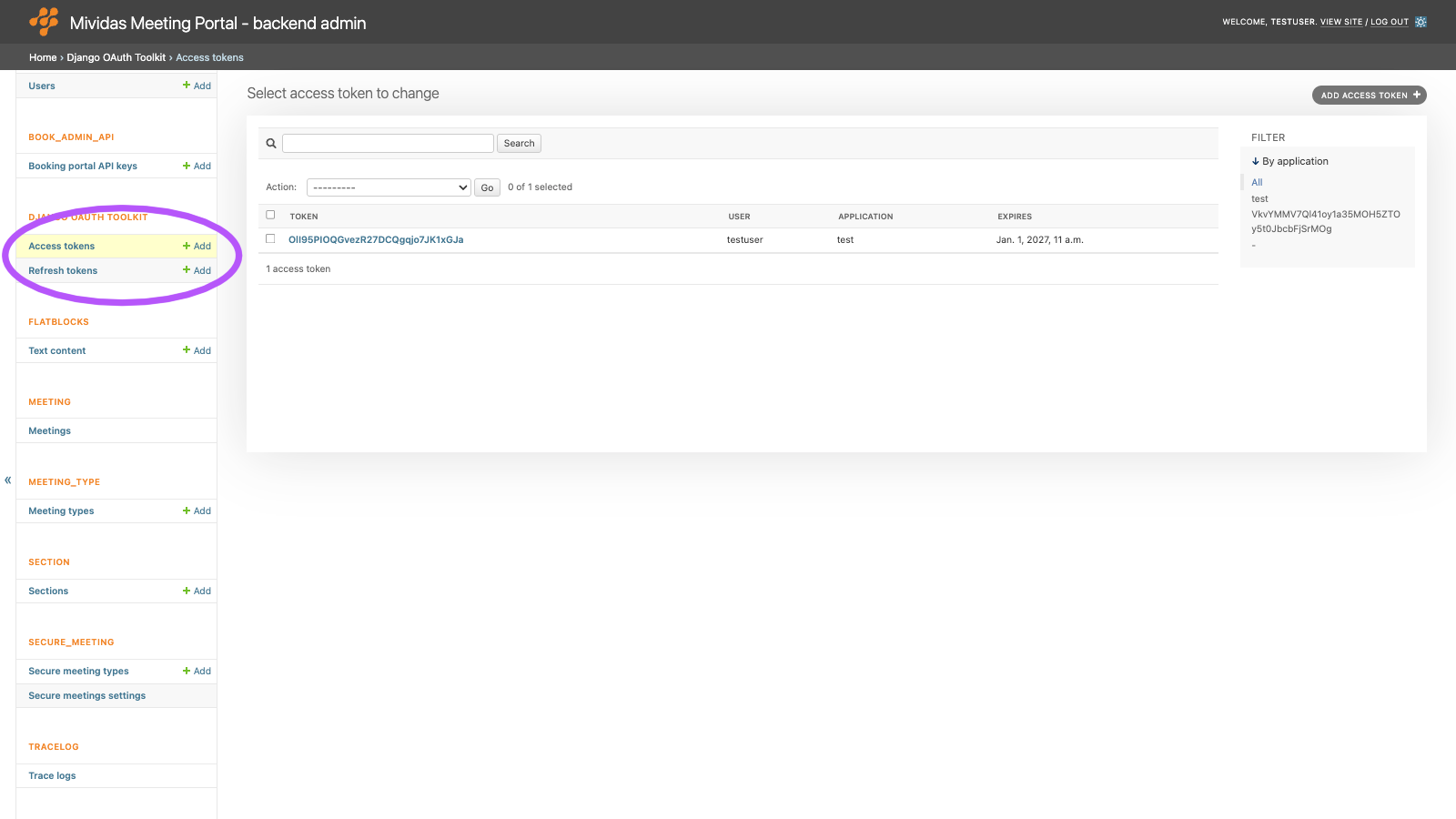
View, and revoke OAuth 2.0 access tokens.
Note: Access tokens are shown in clear text. Anyone who can open this page can use the tokens to access the API as the token’s user. Only give superuser access to people who need it.
Tokens are normally created by the OAuth token endpoint (https://<portal-fqdn>/oauth/token/). To create a token manually, use Generate OAuth2 Tokens on the user’s page under AUTHENTICATION AND AUTHORIZATION › Users, instead of adding it here.
List view

| Column | Description |
|---|---|
| Token | The access token. |
| User | The user the token was issued for. |
| Application | The OAuth application the token belongs to. |
| Expires | When the token expires. Expired tokens can’t be used. |
Add or edit an access token

| Field | Description |
|---|---|
| User | The user the token gives access to. Enter the user’s ID, or click the magnifying glass to look up a user. |
| Source refresh token | The refresh token that was used to create this access token, if any. |
| Token | Required. The access token value. |
| Token checksum | A checksum of the token, used for fast lookups. It’s recalculated automatically from Token when you save. |
| Id token | The OpenID Connect ID token issued together with the access token, if any. |
| Application | The OAuth application the token belongs to. |
| Expires | Required. When the token expires. |
| Scope | The scopes granted to the token, space separated, e.g. api:read api:write. |
Note: Changing Scope changes what the token can be used for, from its next request. If the application’s owner has scoped permissions, the token is still limited to the owner’s group scopes. See Which scopes can be granted under API_KEY › Applications.
Revoke access tokens
To revoke a token immediately, open it and click Delete. To revoke multiple tokens, select them in the list and use the Delete selected access tokens action. Clients that use a deleted token must obtain a new one. If they still have a valid refresh token, they can use it to get a new access token. To stop that, also delete the refresh token under DJANGO OAUTH TOOLKIT › Refresh tokens.