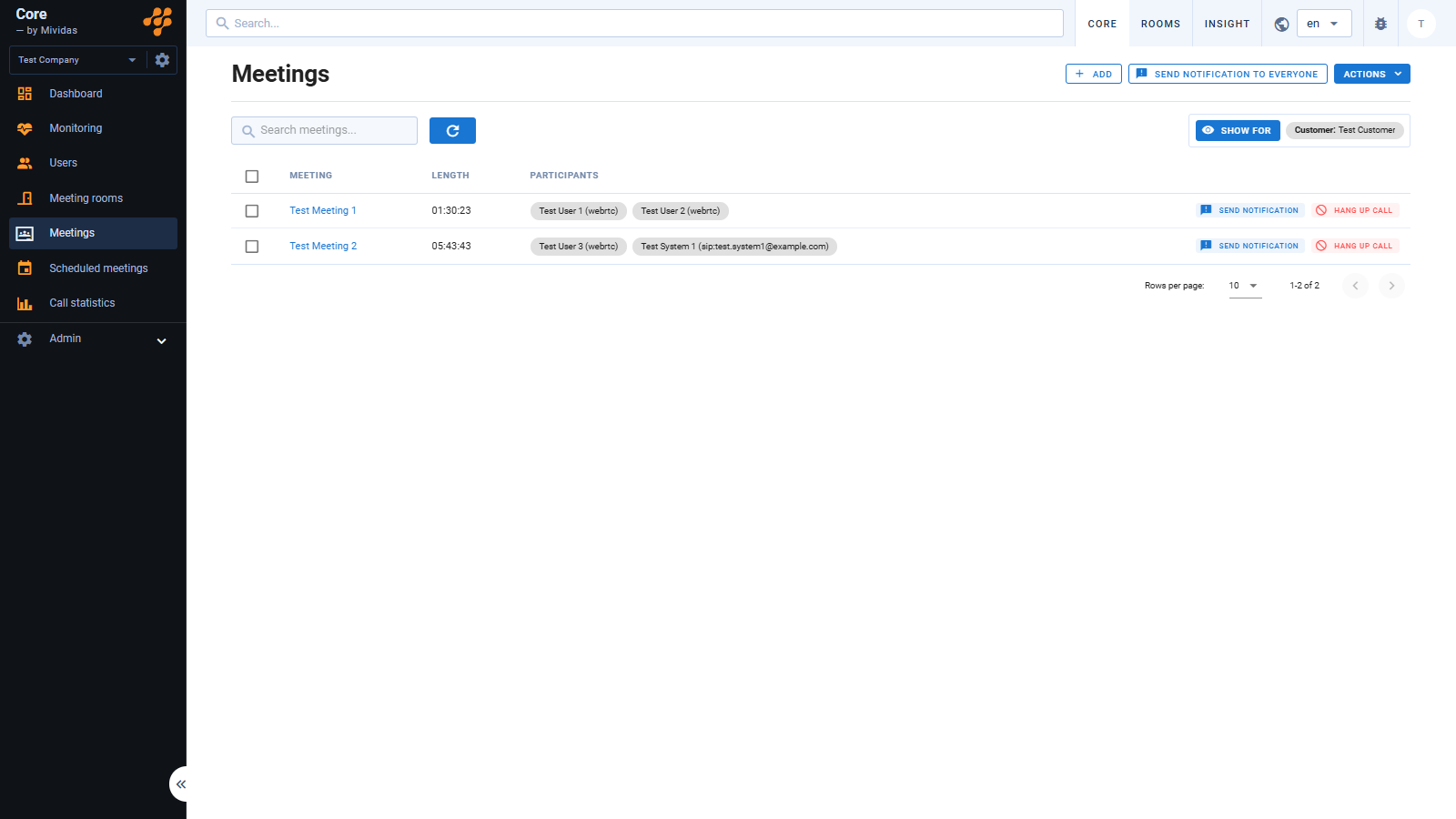
This page displays active meetings and enables them to be managed in real time. The page provides an overview of all current meetings for the selected customer or tenant. If there are numerous meetings, you can use the search field to locate a specific one and adjust the number of meetings displayed per page. The overview includes the meeting name, duration, and current participants.
Search and filter

| Search and filter | |
|---|---|
 | Search for an ongoing meeting by name. |
| Reload the data to apply any changed filters. | |
| Choose to filter the data for a specific customer or cluster. |
Meeting list

- Meeting – The name of the meeting. Click on it to take you to Active meeting.
- Length – The amount of time that the meeting has been going for.
- Participants – A list of participants in the meeting, with their name and connection type. If all participants cannot fit in the column, the remaining are summarized as a count, e.g.
[+3].
Start a meeting
By clicking in the top right corner, you can start a meeting in a meeting room.
Cisco Meeting Server
Pexip Infinity
Control a meeting
Click on a meeting to view meeting details and access meeting controls. Read more about how to use these controls under Active meeting.
Additional notes
Additional notes on virtual meeting rooms and meeting control:
- If a meeting room is configured to automatically call one or more participants and/or conference systems, these will be dialed as soon as an operator or a participant “triggers” the meeting room. For example, when you as an operator activate a meeting room by calling conference system A, conference systems B and C will also be dialed immediately if they are configured for automatic dialing.
- Keep in mind that automatic dialing can be disruptive to operations if someone joins a meeting room with this feature enabled to test the connection or calls in earlier than the scheduled meeting time. This could interfere with other ongoing meetings where these conference systems are already participating.
- For privacy reasons, avoid monitoring and managing ongoing meetings without a clear purpose or assignment. Familiarize yourself with your organization’s policies and guidelines regarding applicable restrictions.
- Ensure proper record maintenance to prevent meeting rooms from remaining active unnecessarily. For example, use the automatic deletion feature to remove rooms at a specified time.
- Make it a habit to always secure meeting rooms with at least a PIN code and update the PIN periodically.
- Users can be assigned static meeting rooms and self-manage them in the Mividas Portal. For example, they can update PIN codes and add or remove members from the meeting room. The Mividas Portal also allows enforcing PIN codes to reduce the risk of having completely open meeting rooms.