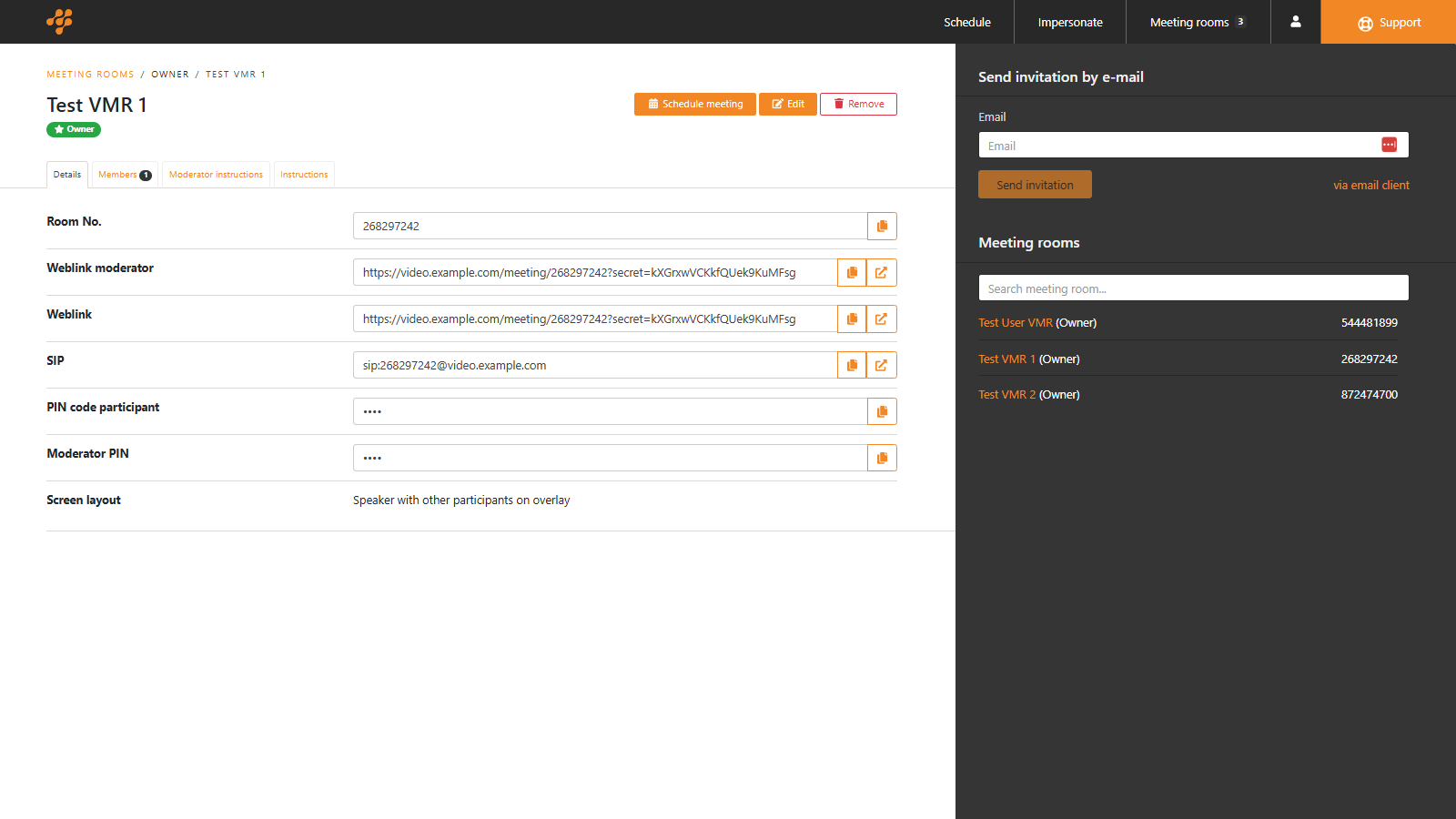
This page displays various settings for your meeting/meeting room. The options will vary depending on your settings, meeting platform, and the type of meeting/meeting room you have created.
Static meeting room information
Left side menu
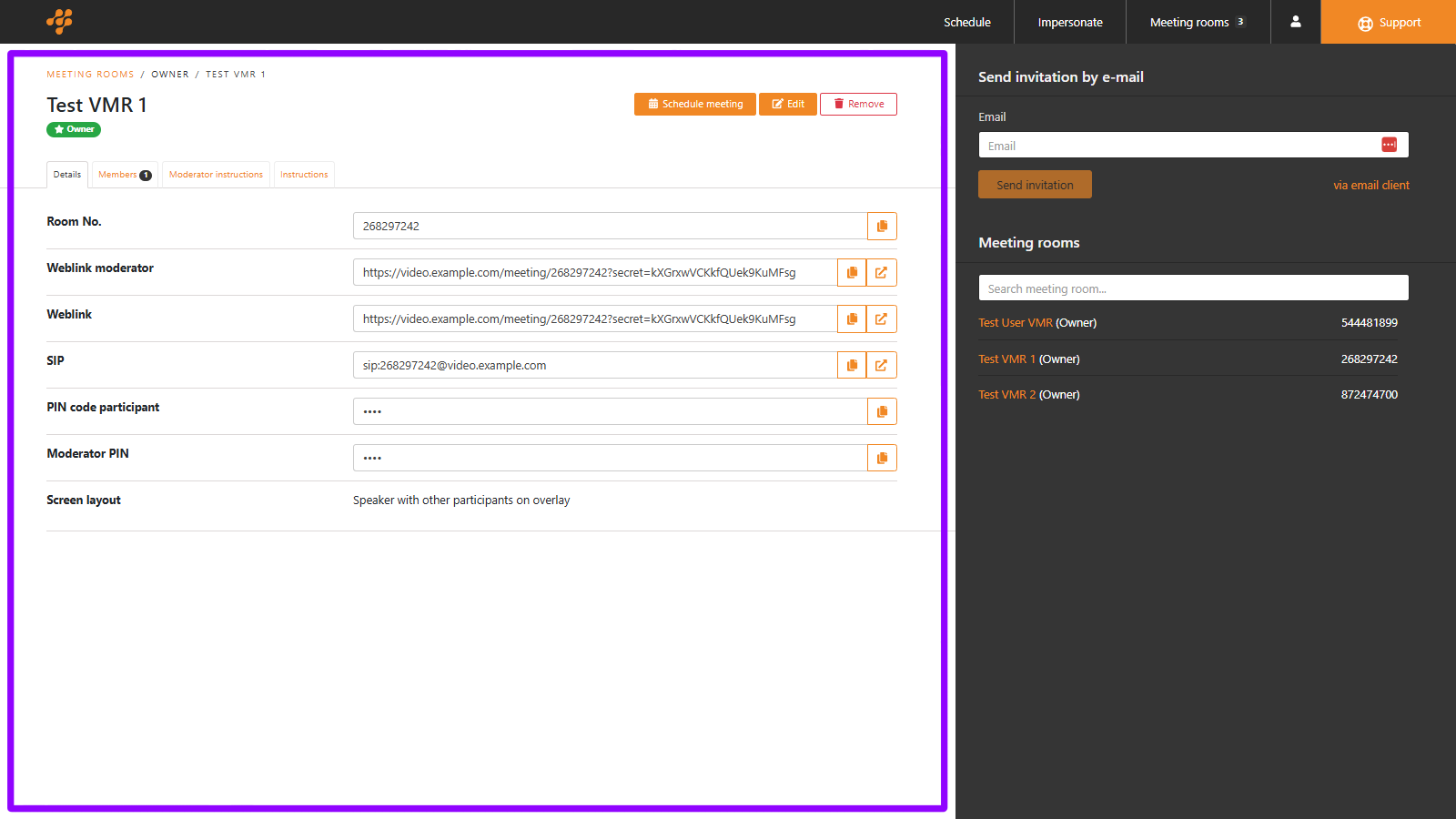
1 Only available for CMS.
Details
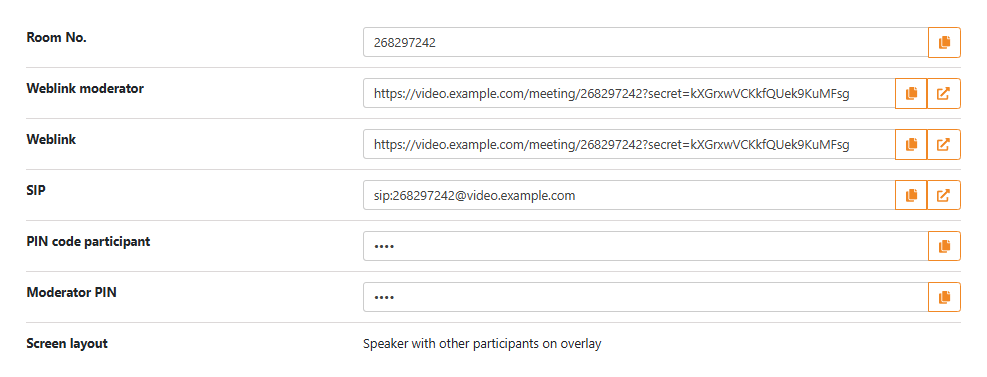
| Option | Description |
|---|---|
| Room No. | Displays the meeting room number. Click  to copy its content. to copy its content. |
| Weblink moderator | Displays the weblink for moderators. Click to copy its content or  to open it. to open it. |
| Weblink | Displays the weblink for participants. Click to copy its content or to open it. |
| SIP | Displays the SIP URI for moderators. Click to copy its content or to open it. |
| PIN code participant | Displays the PIN for participants, hover to reveal. Click to copy its content. |
| Moderator PIN | Displays the PIN for moderators, hover to reveal. Click to copy its content. |
| Screen layout | Shows the meeting room’s layout. |
Members
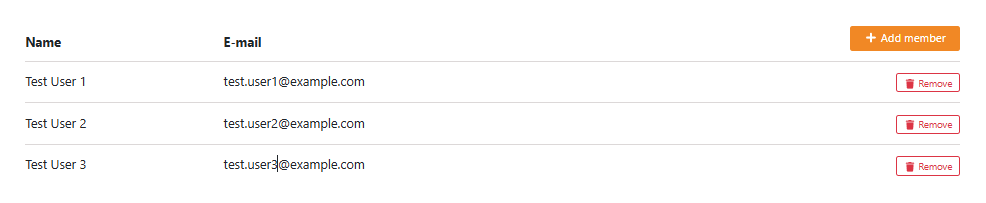
NOTE: Only available when using CMS for the meeting room.
Moderator instructions
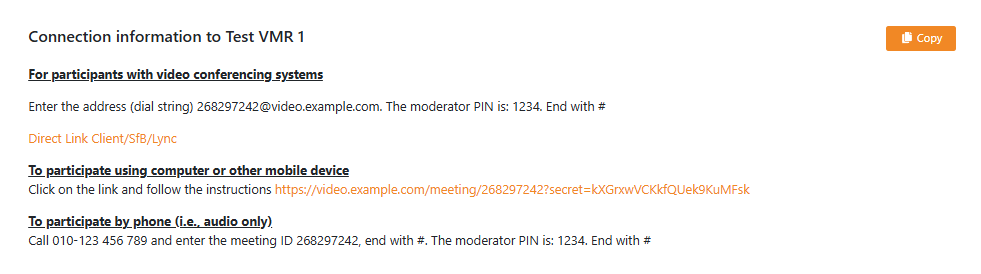
Displays the instructions and connection details for moderators, based on your templates.
| Options | Description |
|---|---|
 | Click to copy the instructions. |
Instructions
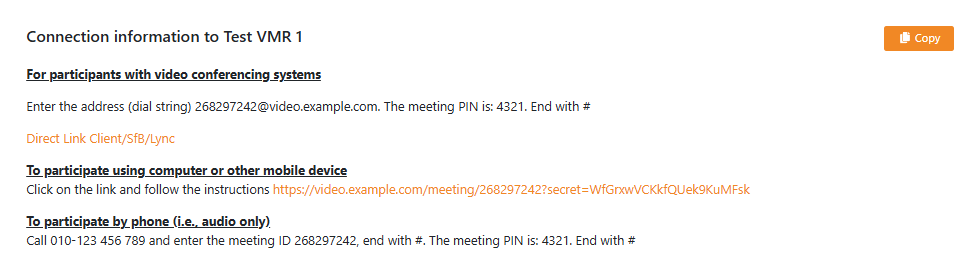
Displays the instructions and connection details for guests, based on your templates.
| Options | Description |
|---|---|
| | Click to copy the instructions. |
Right side menu
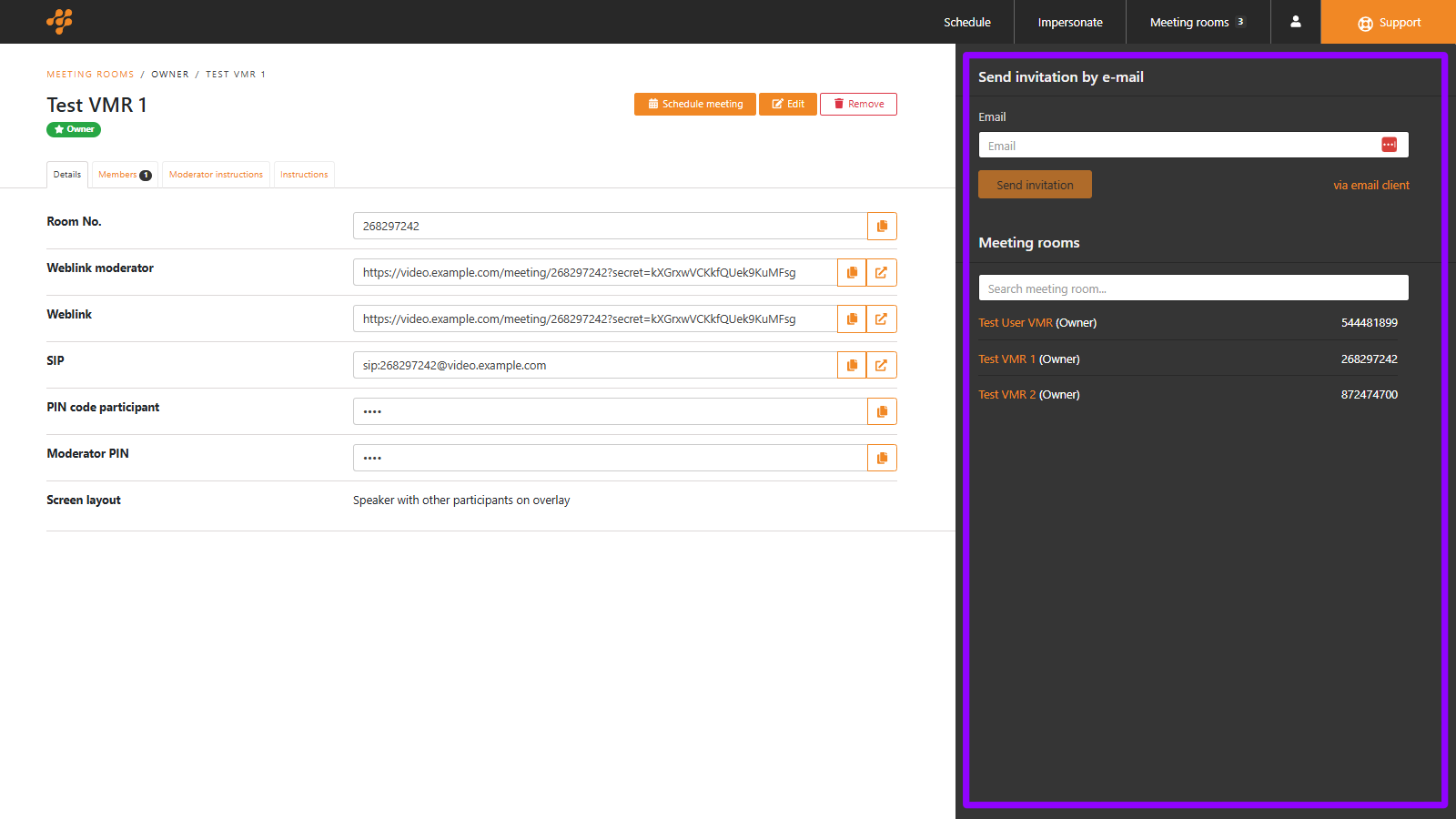
Send invitation by e-mail
| Options | Description |
|---|---|
 | Enter the email of someone you wish to invite. |
| Click to send the guest invitation to the address entered above. | |
| via email client | Opens your email client with the guest invite populated. |
Meeting rooms
| Options | Description |
|---|---|
 | Search for a meeting room from the list below. Clicking the meeting room name in the list takes you to that room. |
Scheduled meeting information
Left side menu
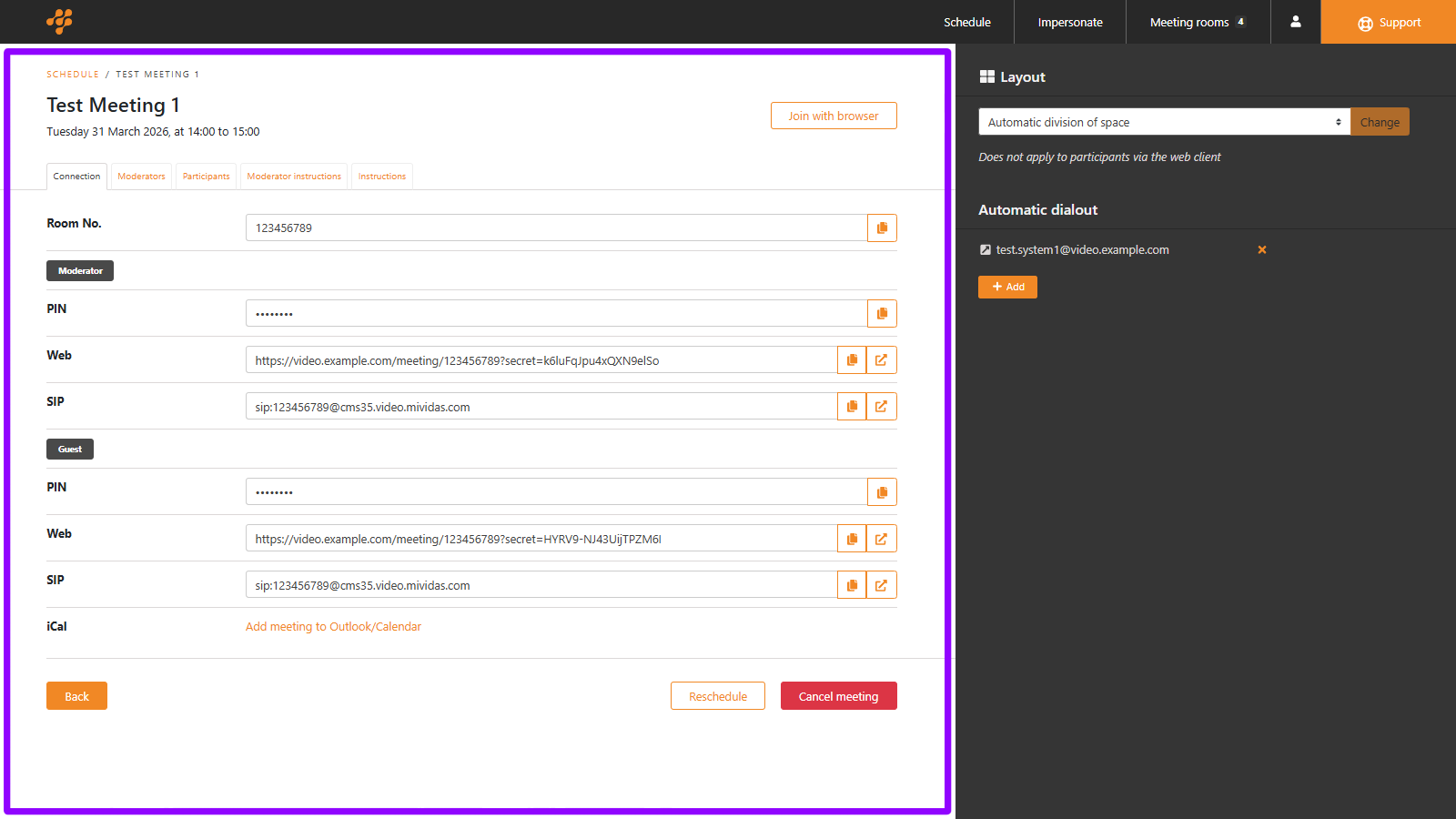
Connection
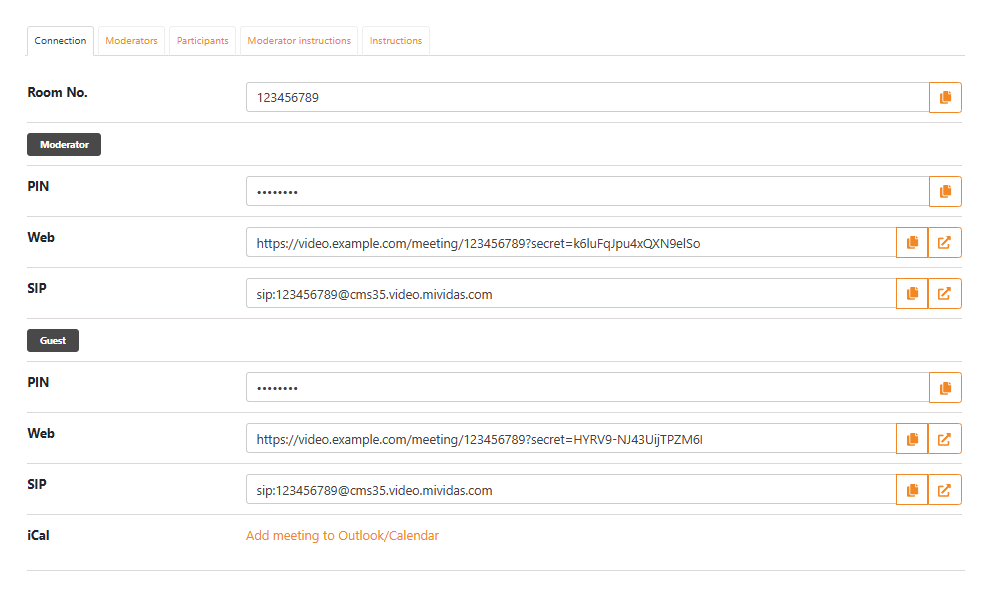
| Option | Description |
|---|---|
| Room No. | Displays the meeting room number. Click to copy its content. |
| Moderator / PIN | Displays the PIN for moderators. Click to copy its content, hover to reveal. |
| Moderator / Web | Displays the weblink for moderators. Click to copy its content or to open it. |
| Moderator / SIP | Displays the SIP URI for moderators. Click to copy its content or to open it. |
| Guest / PIN | Displays the PIN for guests. Click to copy its content, hover to reveal. |
| Guest / Web | Displays the weblink for guests. Click to copy its content or to open it. |
| Guest / SIP | Displays the SIP URI for guests. Click to copy its content or to open it. |
| iCal | Download the meeting as a .ics file for your calendar application. |
Moderators
This page displays all invited moderators for the meeting. It also allows you to add or remove moderators.
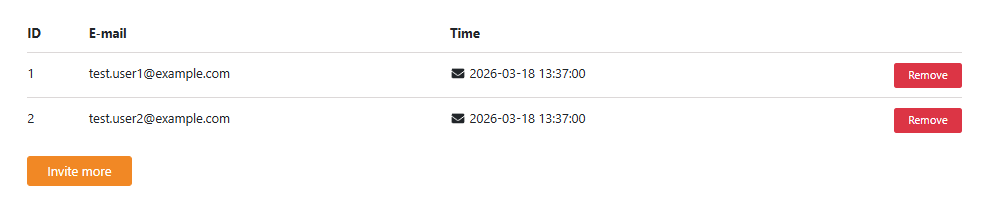
- ID – ID of this invite for troubleshooting purposes.
- E-mail – Displays the email address of the moderator.
- Time – The date and time of when the invitation was sent.
Participants
This page displays all invited participants for the meeting. It also allows you to add or remove participants.
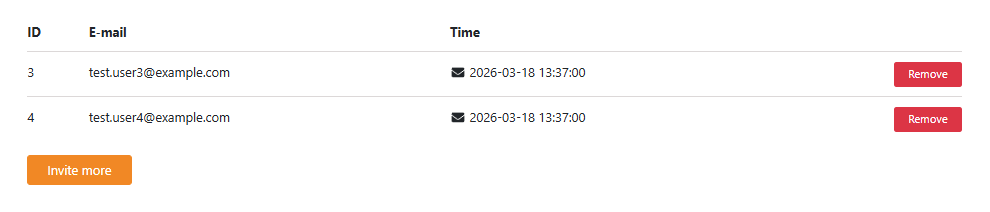
- ID – ID of this invite for troubleshooting purposes.
- E-mail – Displays the email address of the participant.
- Time – The date and time of when the invitation was sent.
Moderator instructions
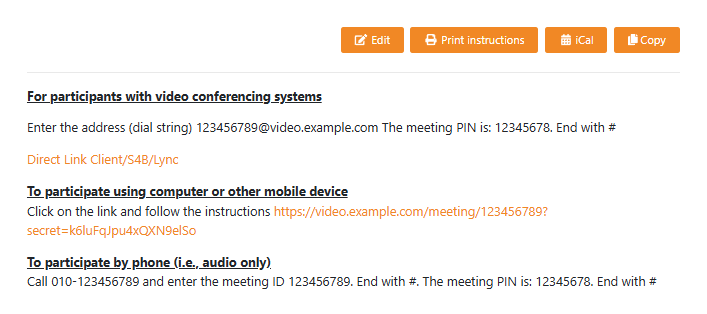
Displays the instructions and connection details for moderators, based on your templates.
| Options | Description |
|---|---|
 | Edit these instructions. |
 | Print these instructions. |
 | Download these instructions as a .ics file for your calendar application. |
 | Copy these instructions. |
Instructions
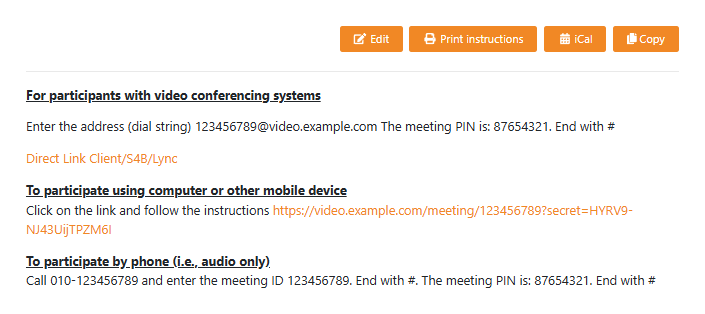
Displays the instructions and connection details for moderators, based on your templates.
| Options | Description |
|---|---|
| Edit these instructions. |
| Print these instructions. |
| Download these instructions as a .ics file for your calendar application. |
| Copy these instructions. |
Right side menu
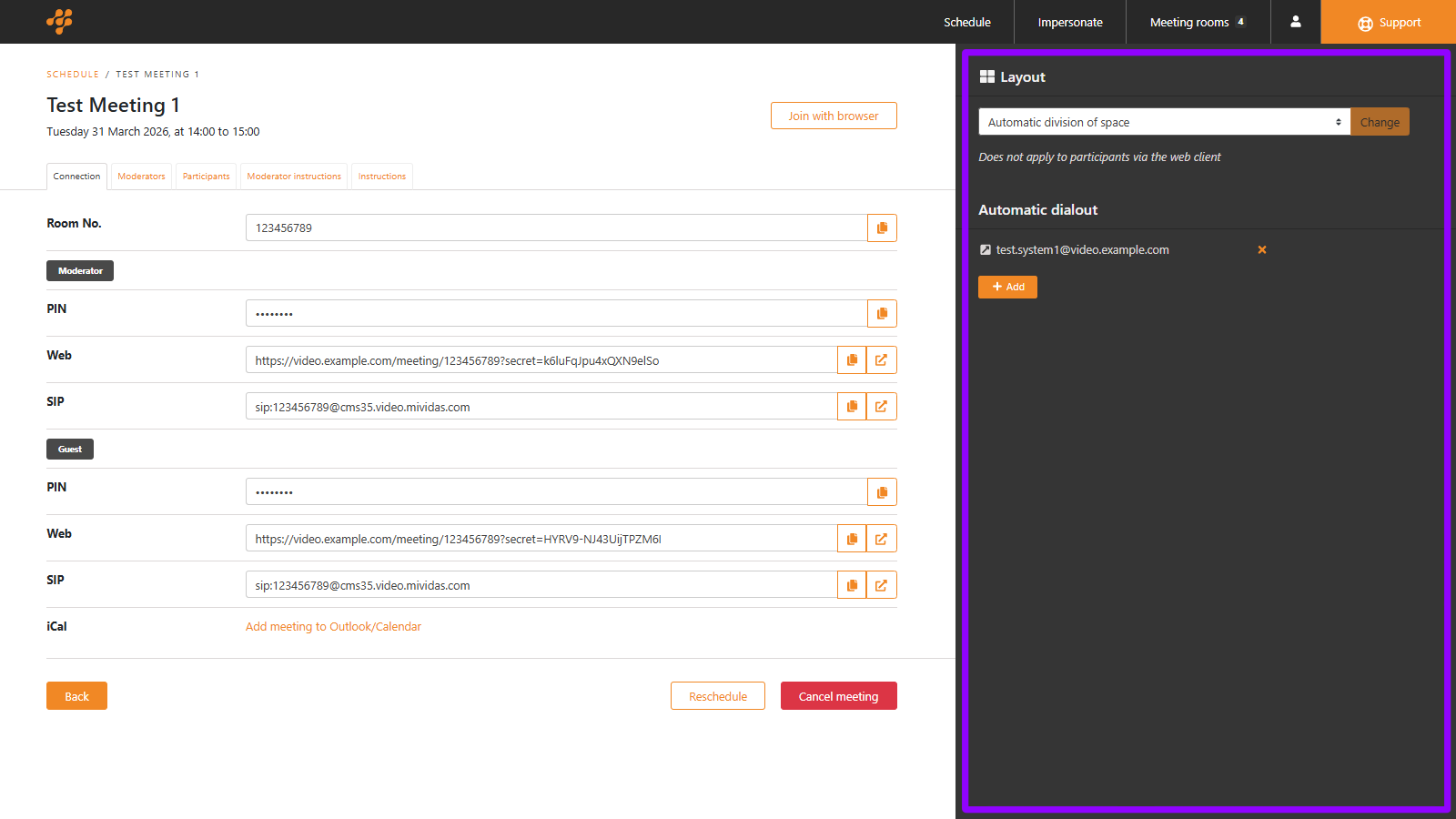
Layout
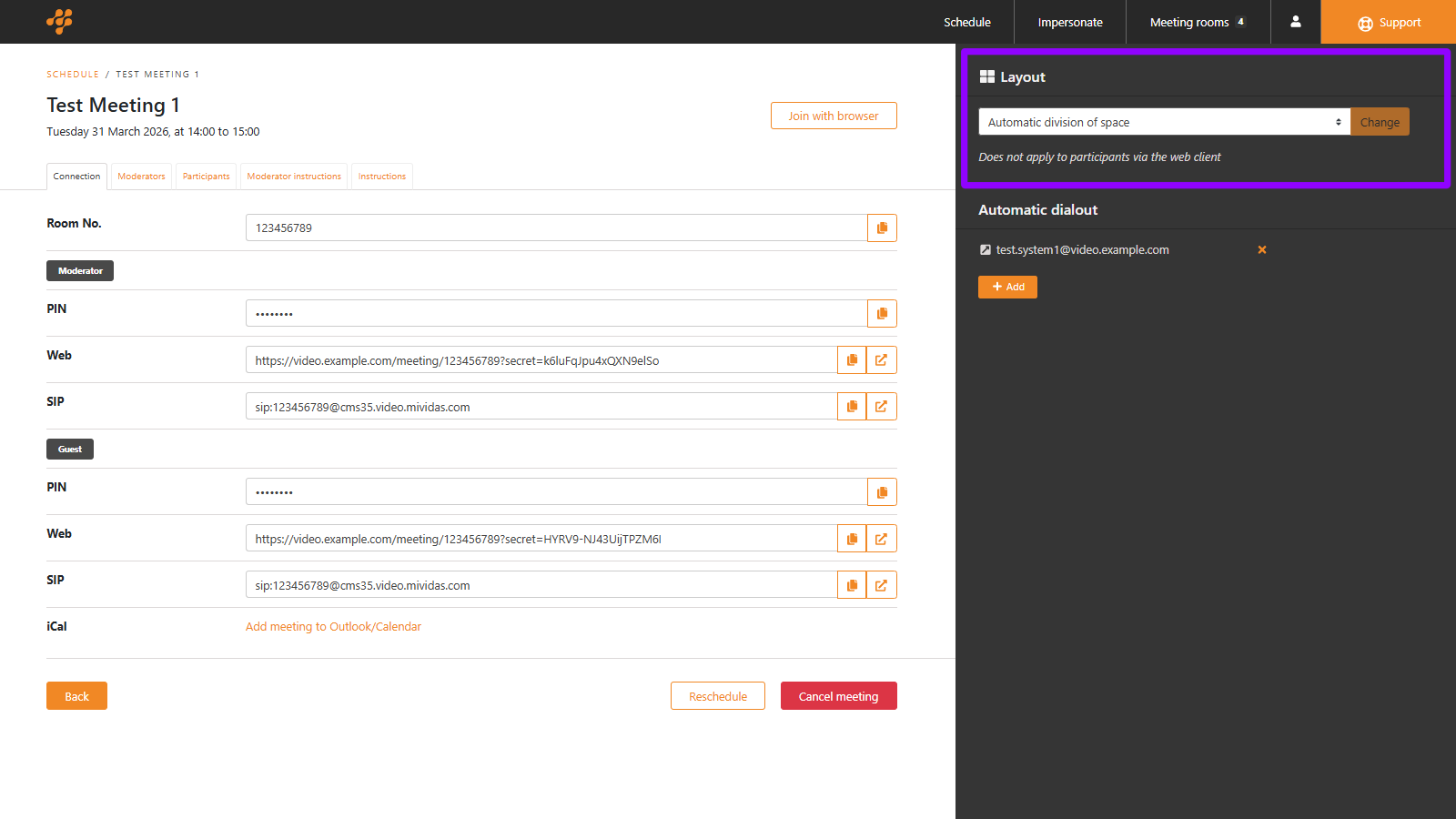
If you wish to change the layout of this meeting, select it here and click .
Automatic dialout
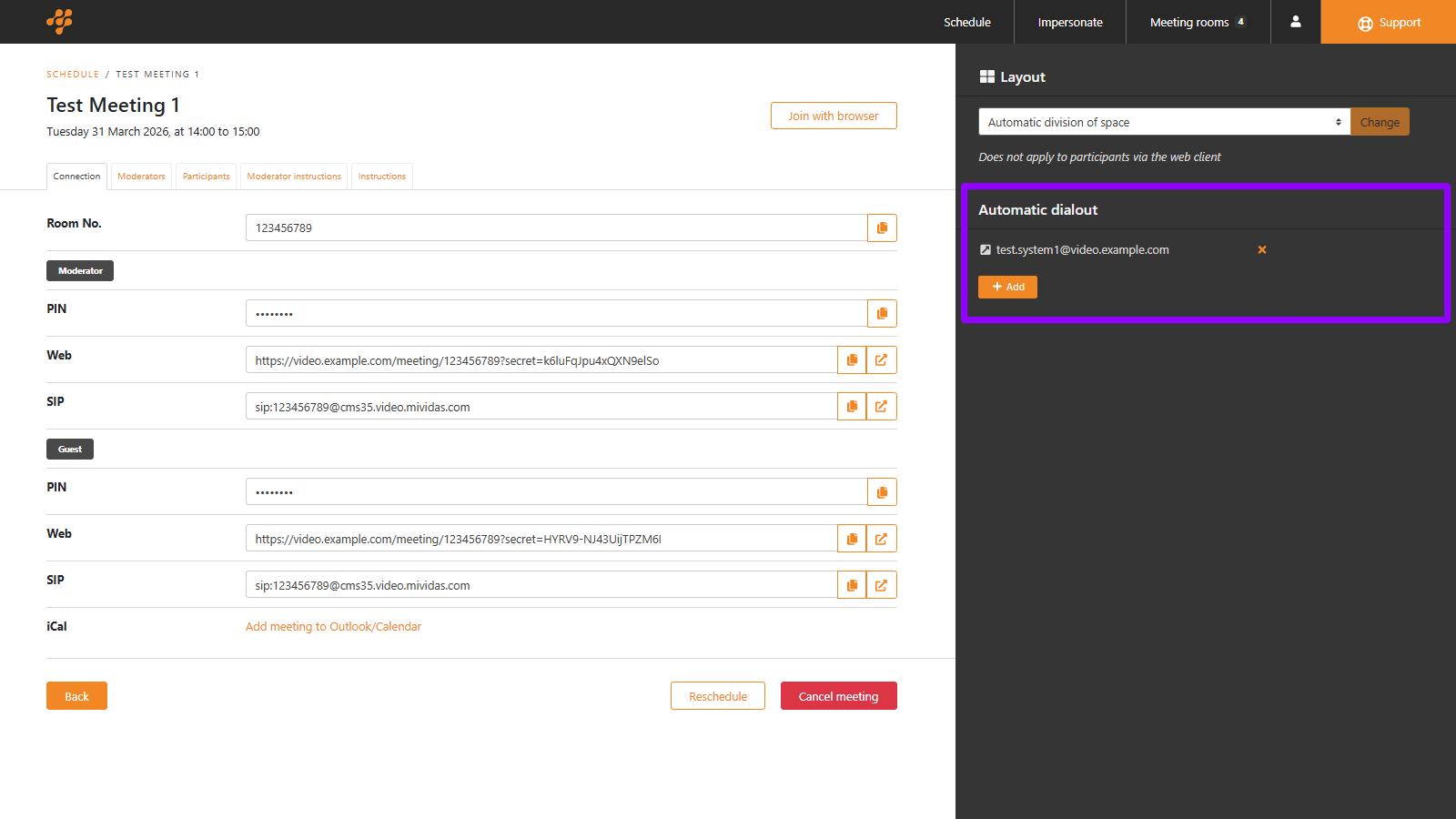
Displays system added to the meeting.
Scheduled secure meeting information
Left side menu
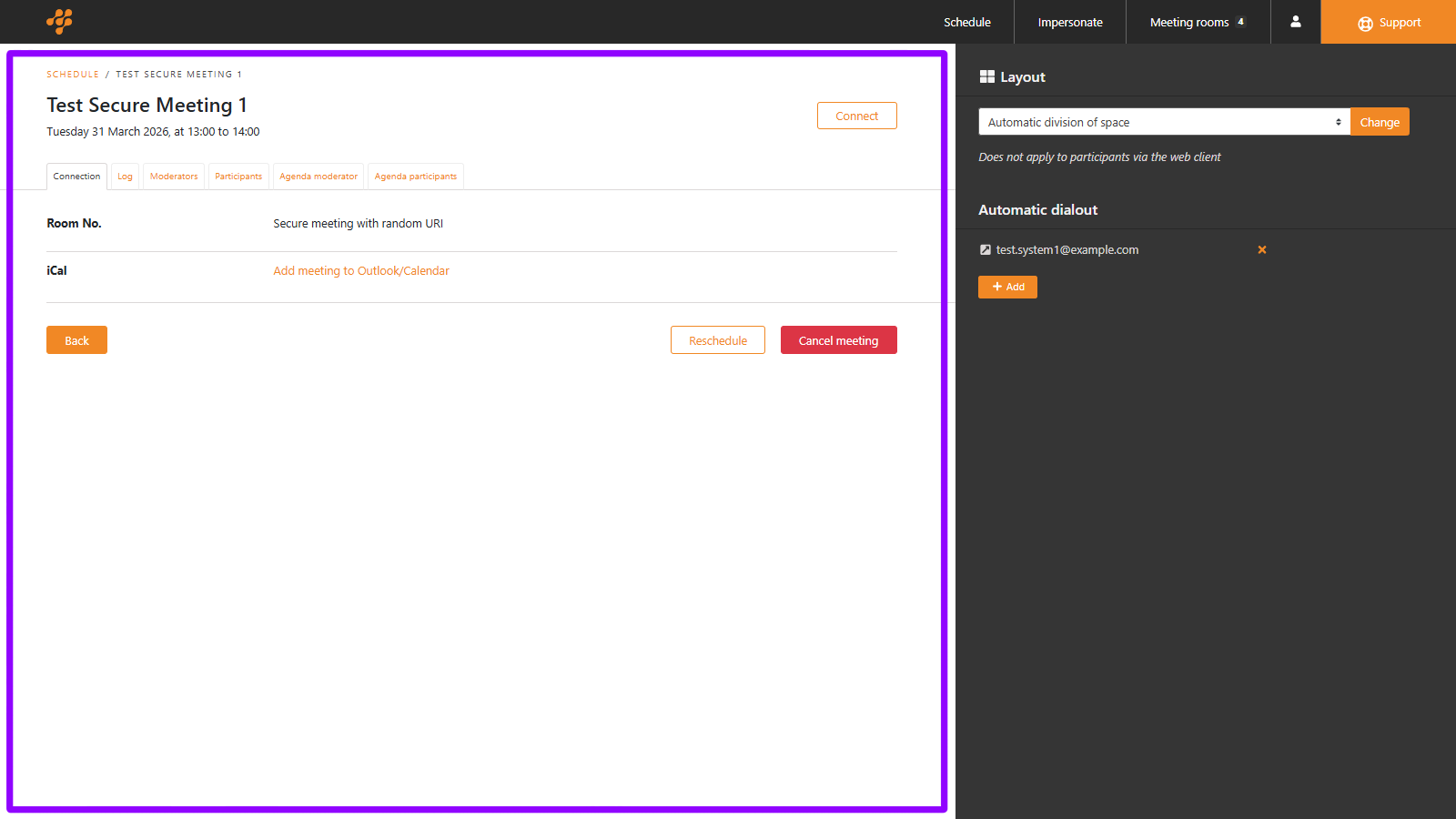
Connection

Secure meetings do not display any connection details; that is all handled by Mividas Identify.
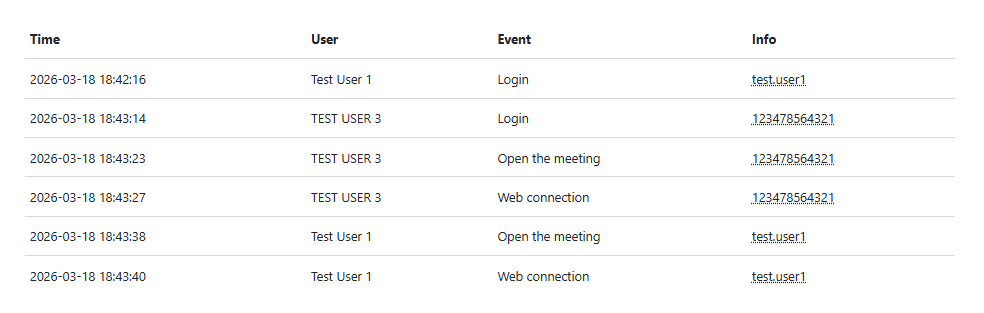
Log
Moderators
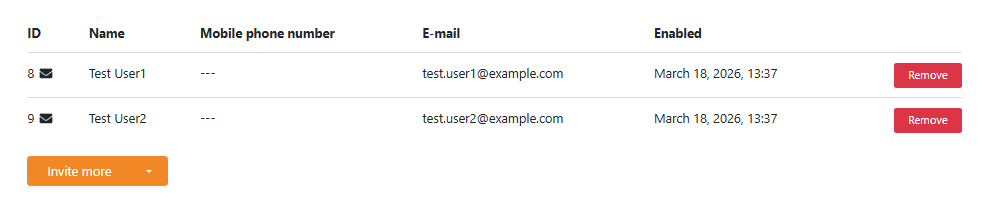
| Options | Description |
|---|---|
| ID | ID of this invite for troubleshooting purposes. It can also display an icon showing the status of the invitation: ( ) – The email has been successfully forwarded to your email relay. Hovering the icon displays the date and time it was sent. ( ) – There was an issue when the email was forwarded to your email relay. Hovering the icon displays any error message received from the email relay. No icon – No invitation sent, e.g., when using “Via another program”. |
| Name | Download details as a .ics file for your calendar application. |
| Mobile phone number | Displays the mobile phone number of the invited moderator, if any. Used only for SMS invitations and identifications. |
| The email address of the invited moderator. | |
| Enabled | The date and time when this meeting invitation was created. |
| Remove this invited moderator. | |
 |
– Invite more moderators to the meeting, using the same identification method as when you created the meeting. – Invite more moderators to the meeting, choosing another available identification method than when you created the meeting. |
Participants
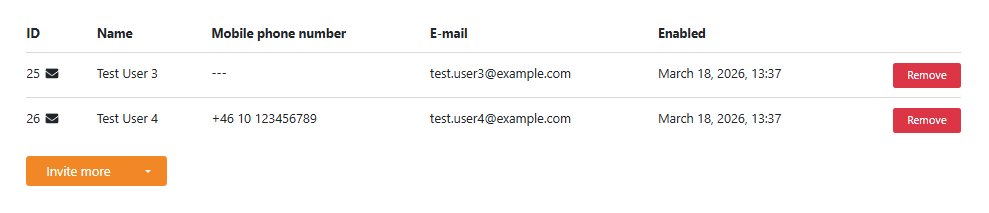
| Options | Description |
|---|---|
| ID | ID of this invite for troubleshooting purposes. It can also display an icon showing the status of the invitation: ( ) – The email has been successfully forwarded to your email relay. Hovering the icon displays the date and time it was sent. ( ) – There was an issue when the email was forwarded to your email relay. Hovering the icon displays any error message received from the email relay. No icon – No invitation sent, e.g., when using “Via another program”. |
| Name | Download details as a .ics file for your calendar application. |
| Mobile phone number | Displays the mobile phone number of the invited participant, if any. Used only for SMS invitations and identifications. |
| The email address of the invited participant. | |
| Enabled | The date and time when this meeting invitation was created. |
| Remove this invited participant. | |
|
– Invite more participants to the meeting, using the same identification method as when you created the meeting. – Invite more participants to the meeting, choosing another available identification method than when you created the meeting. |
Agenda moderator
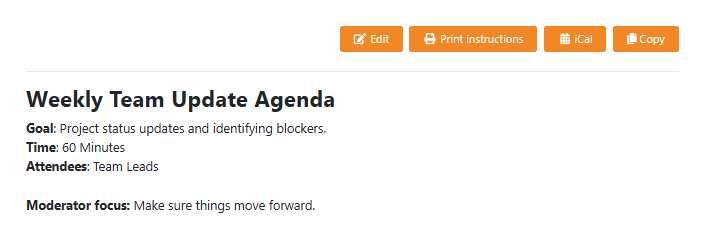
| Options | Description |
|---|---|
| Edit this agenda. |
| Print this agenda. |
| Download this agenda as a .ics file for your calendar application. |
| Copy this agenda. |
Agenda participants
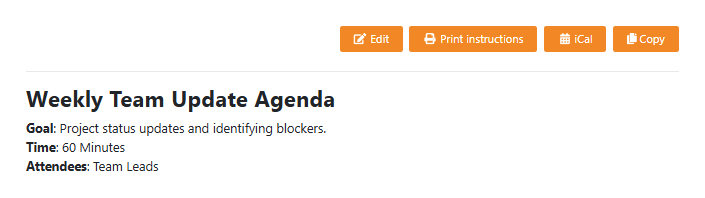
| Options | Description |
|---|---|
| Edit this agenda. |
| Print this agenda. |
| Download this agenda as a .ics file for your calendar application. |
| Copy this agenda. |
Right side menu
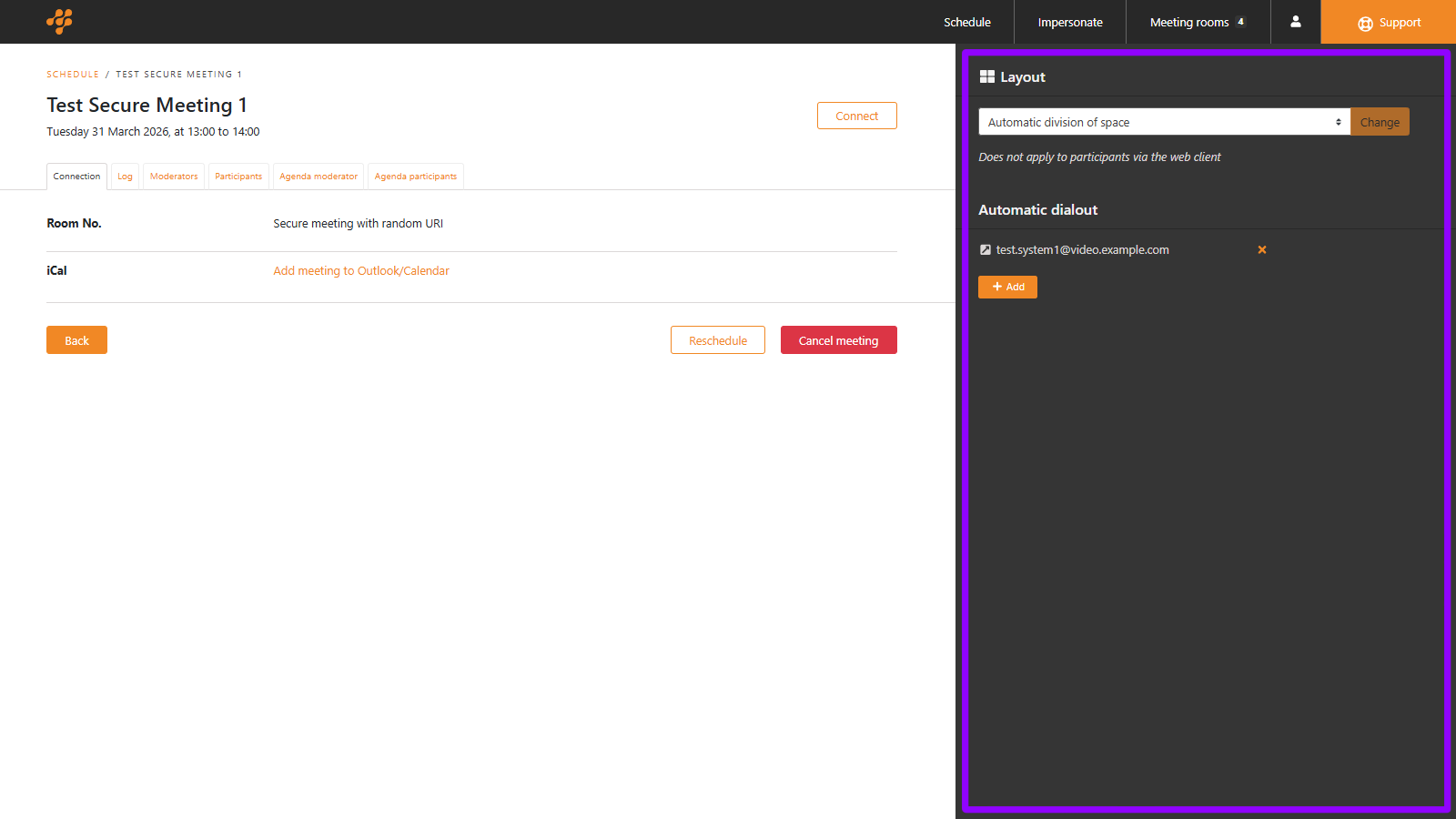
Layout
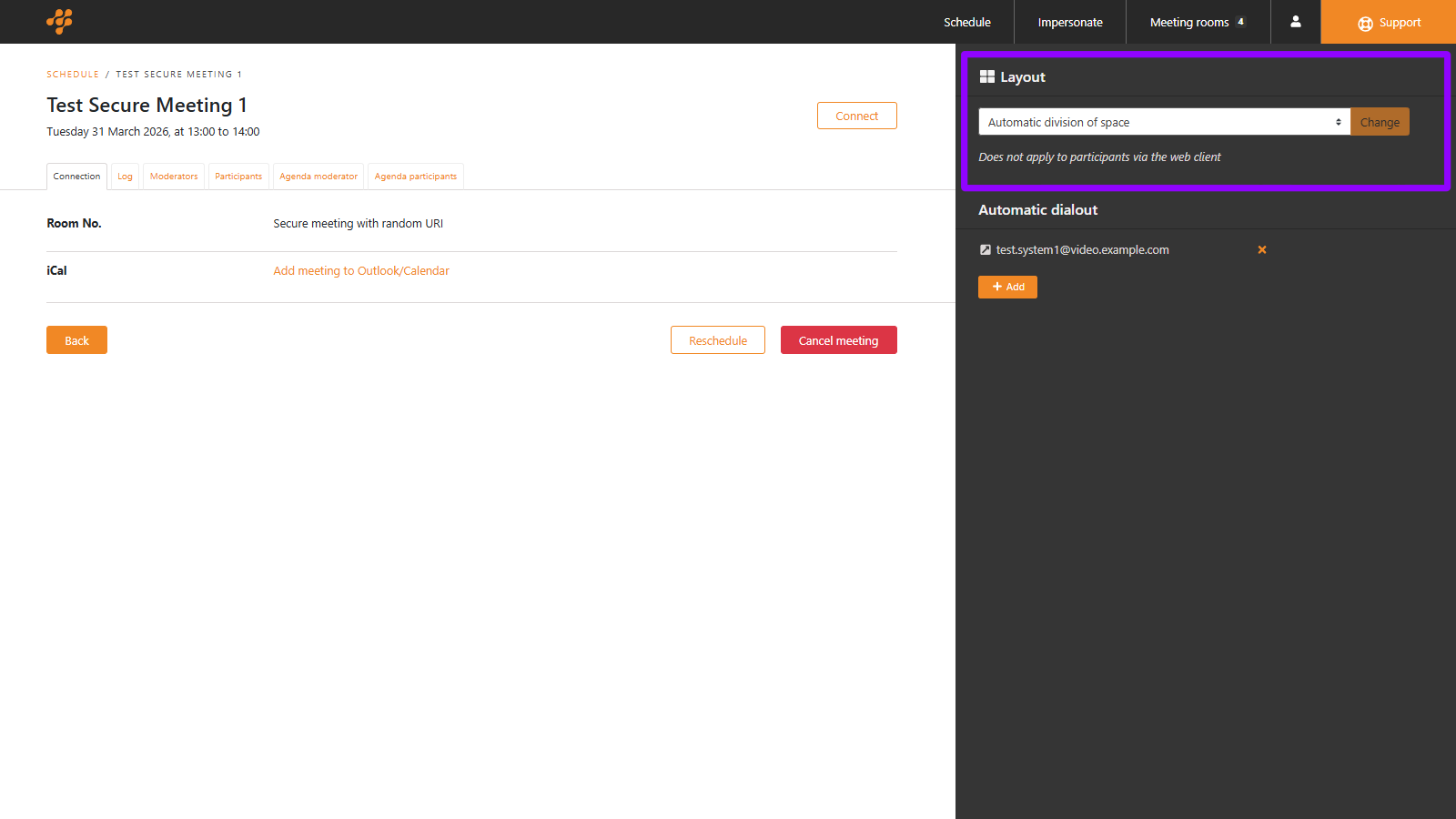
If you wish to change the layout of this meeting, select it here and click .
Automatic dialout
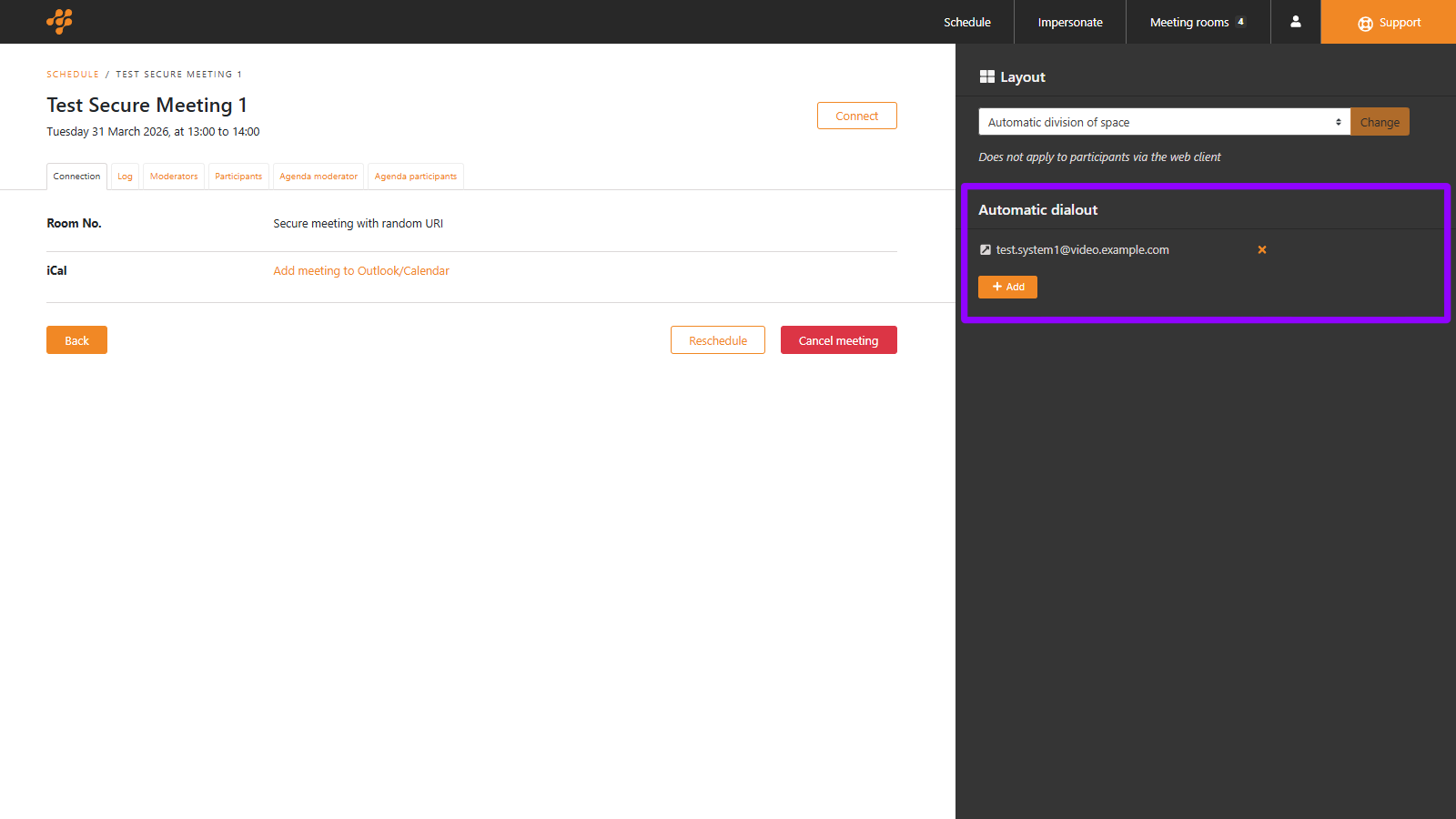
Displays system added to the meeting.