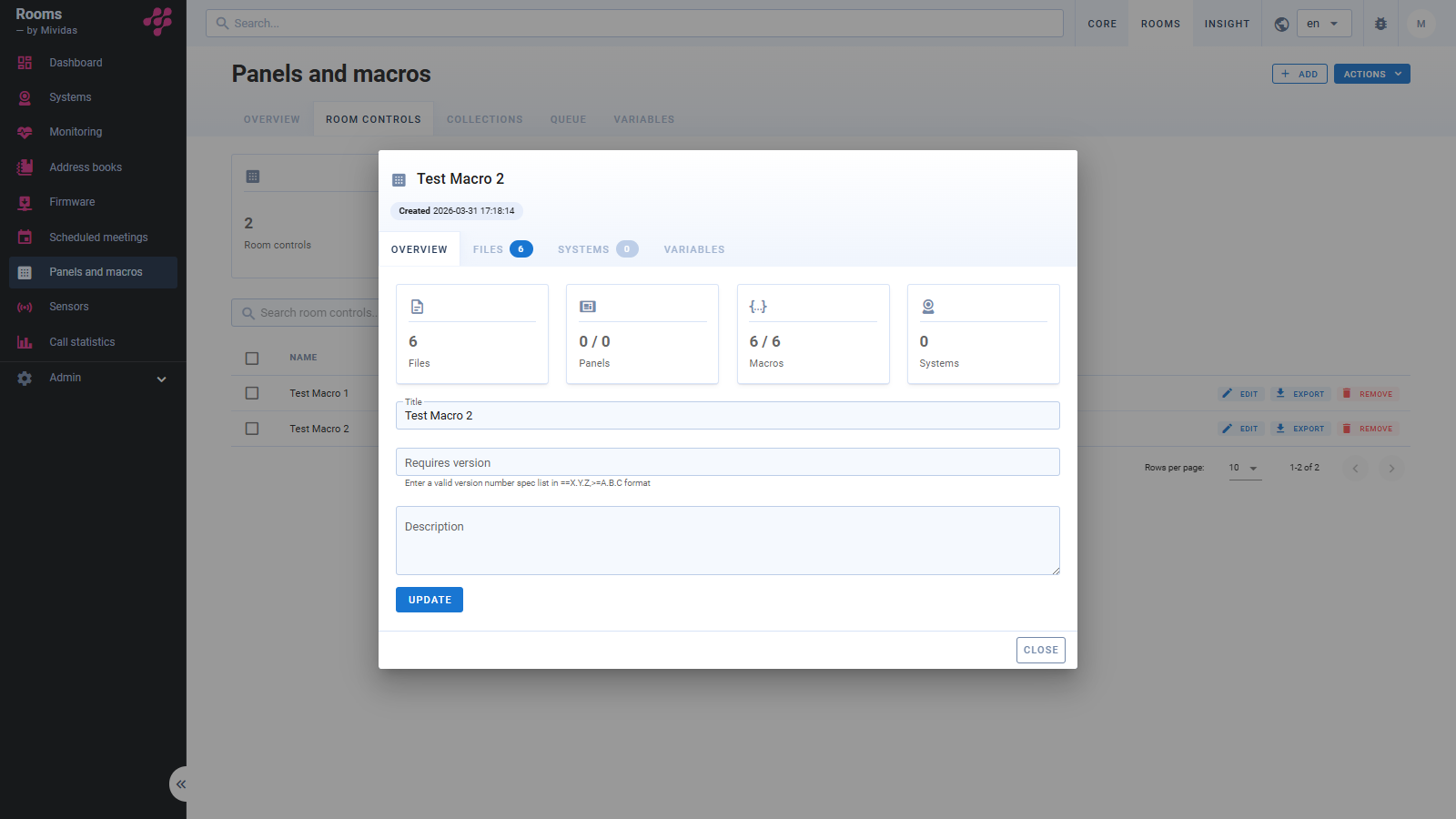
After you have created and uploaded panels and/or macros, you can edit them directly in Minidas Rooms.
Overview
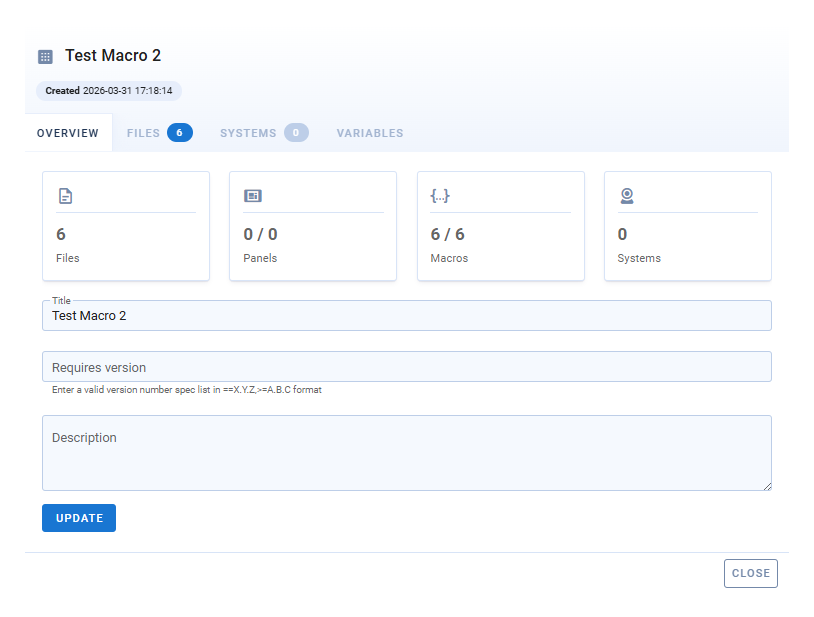
| Option | Description |
|---|---|
 | The number of files used in the configuration. |
 | The number of panels used in the configuration. |
 | The number of macros used in the configuration. |
 | The number of systems that have the configuration enabled. |
| Title | The title of your configuration. |
| Requires version | Enter a valid version number spec list in ==X.Y.Z, >=A.B.C format. |
| Description | A description of your configuration. |
| Update the configuration with your latest changes. |
Files
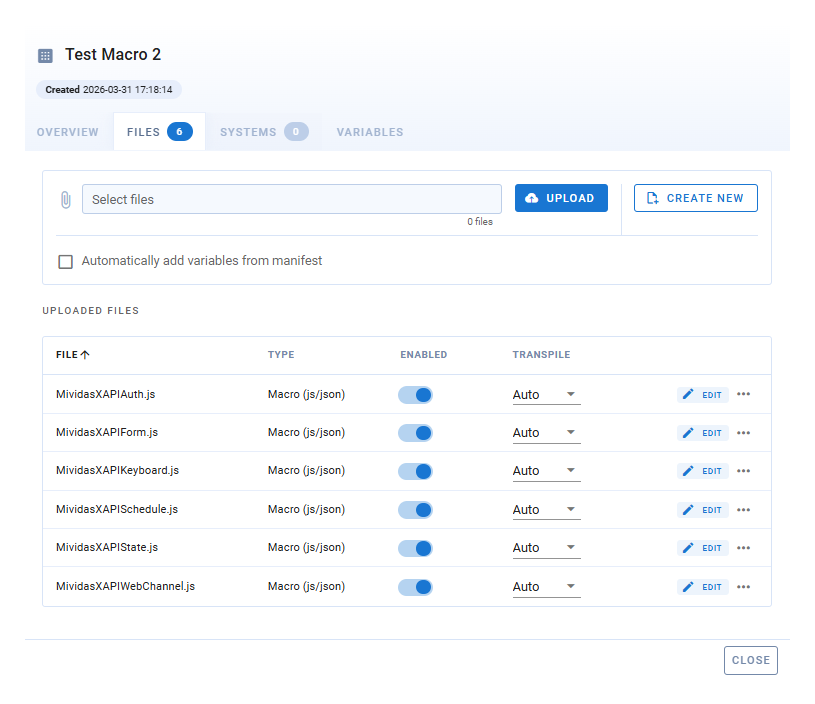
| Option | Description |
|---|---|
| Select files | Controls whether a macro file is transpiled (ES6+ → ES5) before being uploaded to a Cisco endpoint. Transpilation is needed because older endpoint runtimes can’t execute modern JavaScript. Auto – Auto-detect based on file content and endpoint runtime. Yes – Always transpile. No – Never transpile. |
| Click to upload selected file. | |
| Create a new file. | |
| Automatically add variables from manifest file | If uploading a zip file that contains a manifest.json, any supported variables specified in “userParams” will be automatically imported. |
| File | Displays the filename. |
| Type | Displays the type of file. |
| Enabled | Toggle to enable/disable the file. |
| Transpile | Controls whether a macro file is transpiled (ES6+ → ES5) before being uploaded to a Cisco endpoint. Transpilation is needed because older endpoint runtimes can’t execute modern JavaScrip. Auto – Auto-detect based on file content and endpoint runtime. Yes – Always transpile. No – Never transpile. |
| Edit the file. | |
| Allows you to select from options: ( ) – Replace the file. – Remove the file |
Create a new file
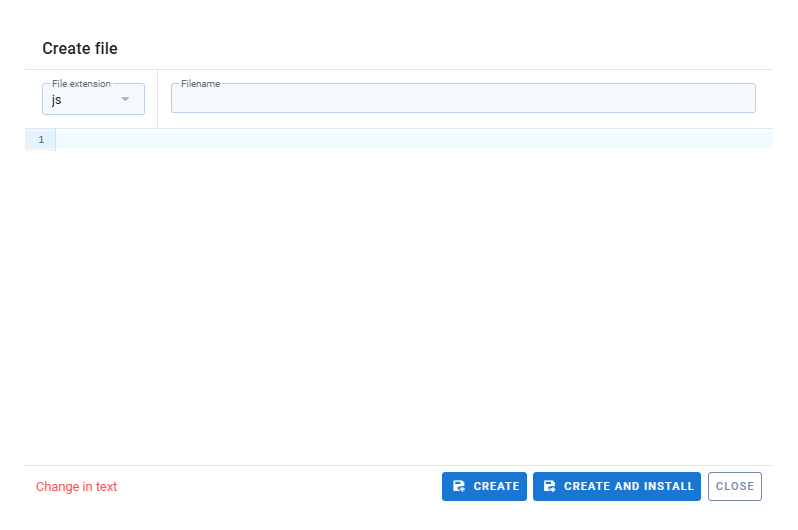
| Option | Description |
|---|---|
| File extension | Select what type of file you want to create. |
| Filename | Set the filename. |
| Content | The content of your file. |
| Create the file. | |
| Create the file and choose which systems to install it on directly. | |
| Close without saving your file. |
Edit file
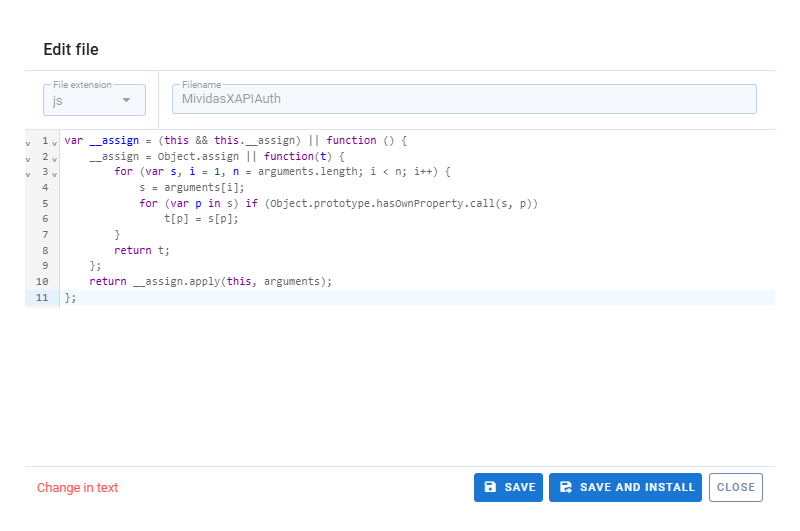
| Option | Description |
|---|---|
| File extension | Display the type of file. |
| Filename | Displays the filename. |
| Content | The content of your file. |
| Save the file. | |
| Save the file and choose which systems to install it on directly. | |
| Close without saving your changes. |
Systems
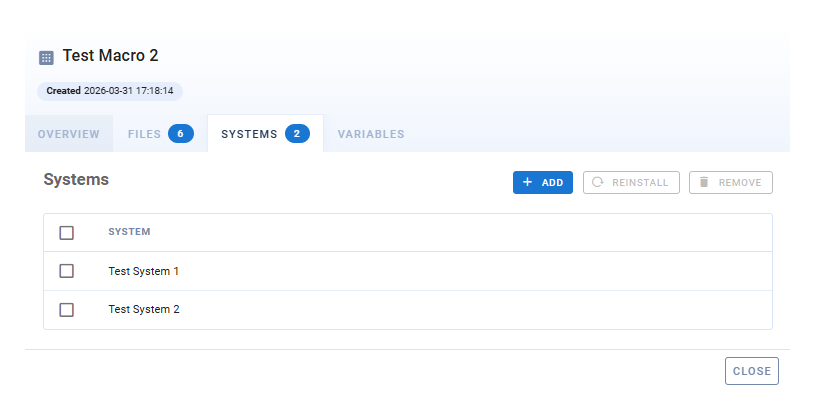
| Option | Description |
|---|---|
| Add a system to the list. | |
| After selecting one or more systems, click to reinstall the macro/panel on selected systems. | |
| After selecting one or more systems, click to remove system(s) from the list. | |
| Close this window. |
Variables
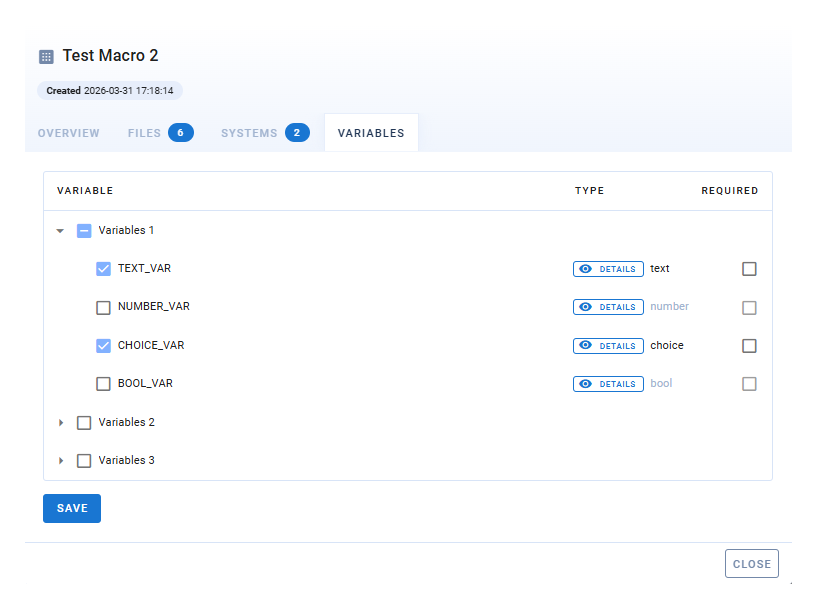
| Option | Description |
|---|---|
| Variable | The variable name, check the checkbox to enable the variable. |
| Type | Displays the type of variable. Click to see the details of the variable. |
| Required | If the checkbox is checked, the variable is required. |
| Save any changes made. | |
| Close this window. |