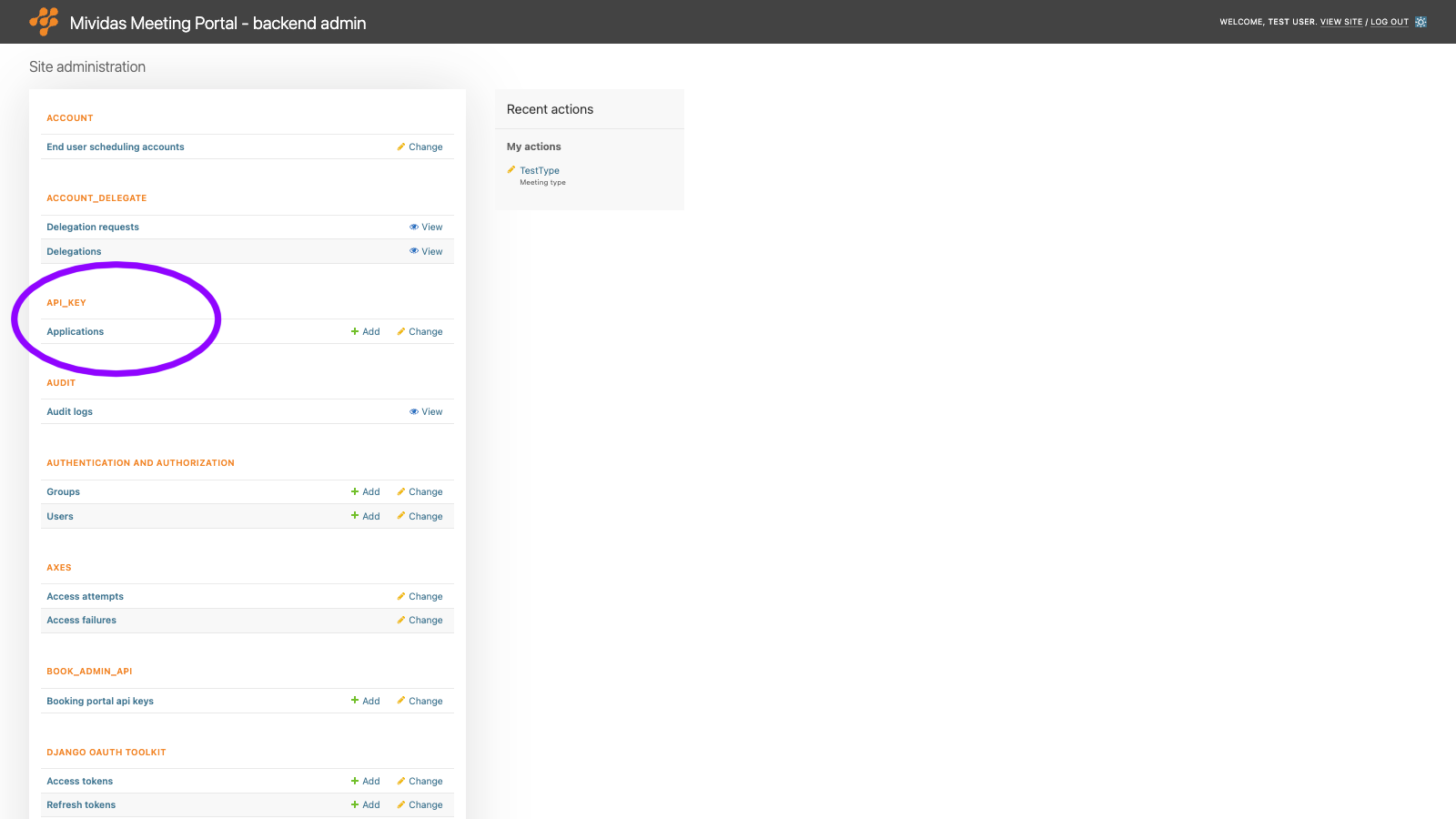
Warning: Changes made here affect low-level platform behavior and can disrupt service if misconfigured. Only make changes if you understand their impact, and always use the regular Mividas Meeting Portal interface when the same setting is available there.
The applications list each external system allowed to call the Mividas Meeting Portal’s API, with its owner, client type, optional allowed IP addresses, and the permission groups that cap what its tokens can do.
| Option | Description |
|---|---|
| Search | Search by name or client ID. |
| Add application + | Add a new OAuth application. |
List view

| Column | Description |
|---|---|
| Name | The descriptive name of the application. |
| Client id | The OAuth client ID. |
| Client type | Confidential or Public. |
| Authorization grant type | The OAuth flow the application uses. |
| User | The owner of the application. |
| Scope groups | The scope selected for this application. |
Add or edit an application
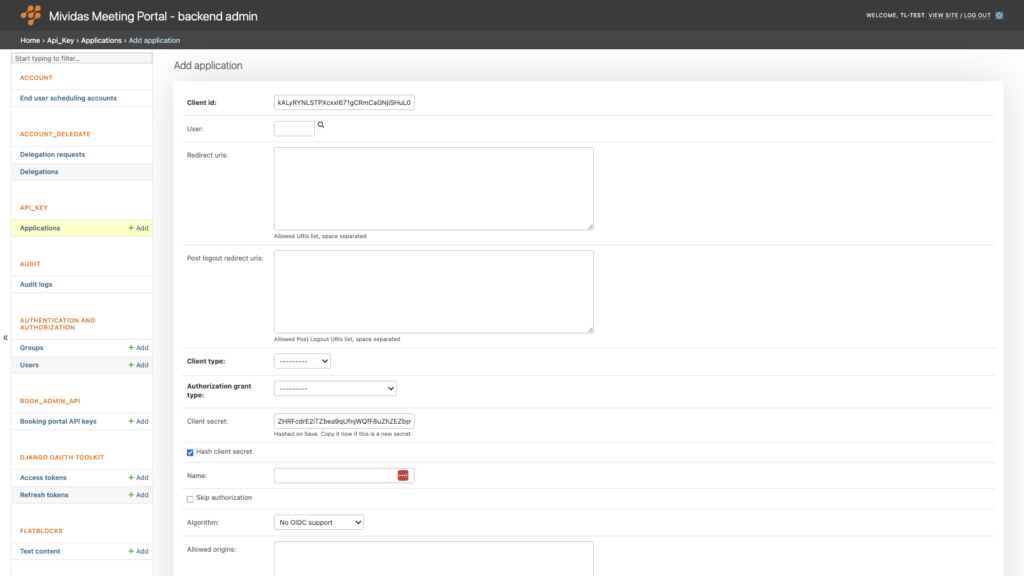
When you add an application, Client id and Client secret are generated automatically. After you click Save, a message appears showing the client secret once. Copy it right away. When Hash client secret is enabled, the secret can’t be shown again.
| Field | Description |
|---|---|
| Client id | The OAuth client ID. It’s generated automatically, but you can replace it. |
| User | The owner of the application. Enter the user’s ID, or click the magnifying glass to look up a user. The owner limits which scopes the application’s tokens can get, see Which scopes can be granted below. Required for the Client credentials grant type. |
| Redirect uris | Allowed URIs list, space separated. Required for the Authorization code and Implicit grant types. |
| Post logout redirect uris | Allowed Post Logout URIs list, space separated. |
| Client type | Choose the OAuth client type. Confidential – Applications running on protected servers, where unauthorized users can’t access the configuration or source code. These applications can keep the client’s secret safe. Public – Applications running where end users can access the source code or binaries, for example, in a browser or on a mobile device. These applications can’t securely store a client secret. |
| Authorization grant type | Choose the OAuth authorization grant type. Authorization code – A secure, redirect-based flow. The application exchanges a temporary authorization code for an access token. PKCE is required. Use this for applications that act on behalf of a signed-in user. Device code – For internet-connected devices without a web browser or with limited input options. The user approves the request on another device, like a smartphone. Implicit – A legacy redirect-based flow where access tokens are returned directly in the URL. Deprecated for security reasons. Use Authorization code instead. Resource owner password-based – A legacy flow in which users enter their username and password directly into the client application. Strongly discouraged. Client credentials – A machine-to-machine flow without user interaction. The application authenticates with its own client ID and secret, and the tokens act as the application owner (User). Recommended for server-to-server integrations. OpenID Connect hybrid – An OpenID Connect flow that returns an ID token and an authorization code at the same time. Requires OpenID Connect to be enabled. |
| Client secret | Hashed on Save. Copy it now if this is a new secret. To change the secret, enter a new value and click Save. Copy the new value before you save. |
| Hash client secret | When enabled (default), the client secret is stored hashed and can’t be shown again after it’s saved. |
| Name | A descriptive name used to identify the application. |
| Skip authorization | When enabled, users aren’t asked to approve the application in the Authorization code flow. Only use this for trusted applications in your own organization. |
| Algorithm | The signing algorithm for OpenID Connect ID tokens: No OIDC support, RSA with SHA-2 256 or HMAC with SHA-2 256. Keep No OIDC support unless OpenID Connect has been enabled for your installation. |
| Allowed origins | Allowed origins list to enable CORS, space separated. Only needed for browser-based applications that call the OAuth endpoints directly. |
| Restrict to IP addresses | A list of approved IP addresses/networks. Separate the entries with spaces or commas, e.g. 172.16.1.10 10.10.10.0/24. API requests with the application’s tokens are denied from all other addresses. Leave empty to allow all addresses. |
Which scopes can be granted?
A token’s scopes are limited by the user for whom it is issued. For Authorization code and Resource owner password-based, this is the signed-in user. For Client credentials, the application owner (User) is the one. The available scopes are described under AUTHENTICATION AND AUTHORIZATION › Groups.
- By default, the user’s admin level decides. All users can get
web,api:read,api:writeandbook_api:write. Users with Staff status can also getadmin:read, and users with Superuser status can also getadmin:write. - If the application owner is a member of a group with the permission Use group scopes for API permissions (beta), the application’s tokens are limited to the scopes granted to the owner’s groups. If you change the group scopes, tokens that are already issued are also affected from their next request.
- The scopes
book_admin_api:read,book_admin_api:writeandsecure_meeting_api:writeare only available through group scopes. - A Client credentials application must have an owner. Without an owner, no tokens can be issued.
Delete an application
Deleting an application also deletes all access tokens and refresh tokens issued for it. Integrations that use the application stop working immediately.