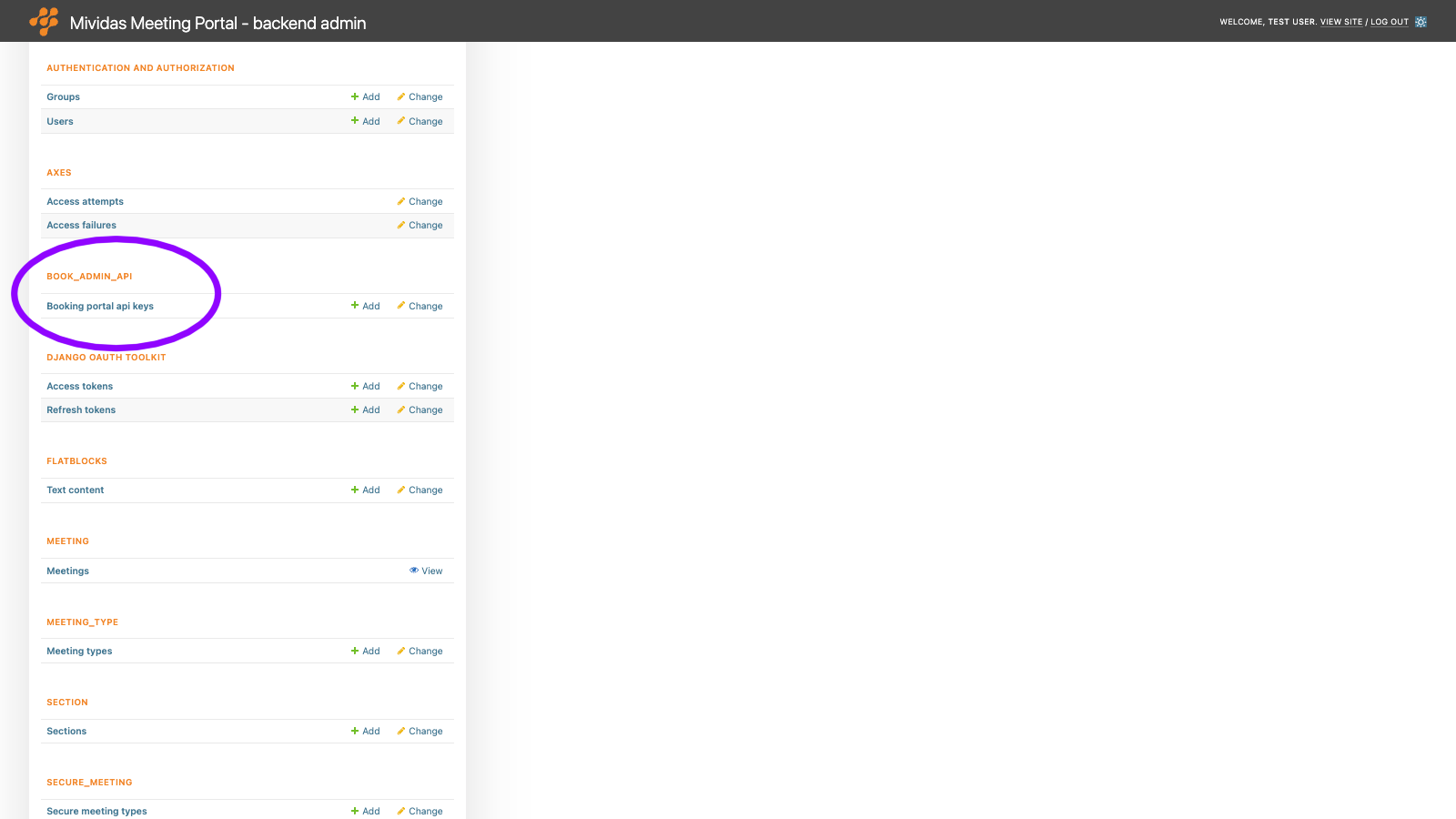
Warning: Changes made here affect low-level platform behavior and can disrupt service if misconfigured. Only make changes if you understand their impact, and always use the regular Mividas Meeting Portal interface when the same setting is available there.
Manage the API keys for the Mividas Meeting Portal admin scheduling API. Integrations such as a calendar or scheduling system use this API to schedule and manage meetings for any user.
| Option | Description |
|---|---|
| Add booking portal API key + | Add a new API key. |
Use an API key
Send the key in the X-Mividas-Token HTTP header with every request to the admin scheduling API under https://<portal-fqdn>/api/admin/.
X-Mividas-Token: <api key>An API key gives full access to the admin scheduling API. Store it securely and only give it to trusted systems. As an alternative to API keys, you can use an OAuth application with the scopes book_admin_api:read or book_admin_api:write, see API_KEY › Applications.
List view

| Column | Description |
|---|---|
| Name | The descriptive name of the key. |
| Key value | A masked preview of the key, showing the first five and the last three characters. |
| Enabled | Shows if the key is enabled. |
Add or edit an API key
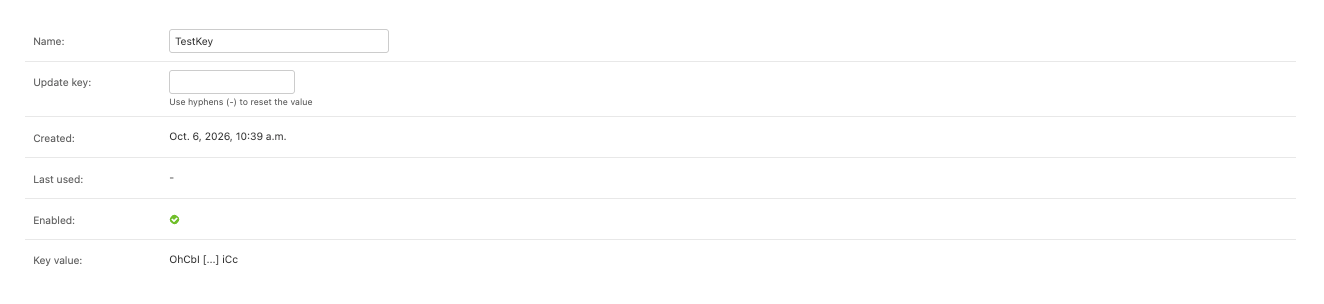
| Field | Description |
|---|---|
| Name | A descriptive name, e.g. the name of the system that uses the key. |
| Update key | Leave empty to generate a random key when you add a new key, or to keep the current key when you edit one. Enter a value to set your own key. To reset the value, enter a hyphen (-). A key that has been reset no longer works. |
| Created | When the key was created (read-only). |
| Last used | When the key was last used in an API request (read-only). |
| Enabled | Shows if the key is enabled (read-only). |
| Key value | A masked preview of the key (read-only). |
After you save a new key, a message displays the complete key once. Copy it right away, because the page only shows a masked preview afterward. The key is stored encrypted.
Revoke an API key
To stop a key from working, open it and enter (-) in Update key, then click Save. You can also delete the key. To delete multiple keys, select them in the list and use the “Delete selected booking portal API keys” action. Systems that use a revoked or deleted key can’t access the API anymore.