Warning: Changes made here affect low-level platform behavior and can disrupt service if misconfigured. Only make changes if you understand their impact, and always use the regular Mividas Meeting Portal interface when the same setting is available there.
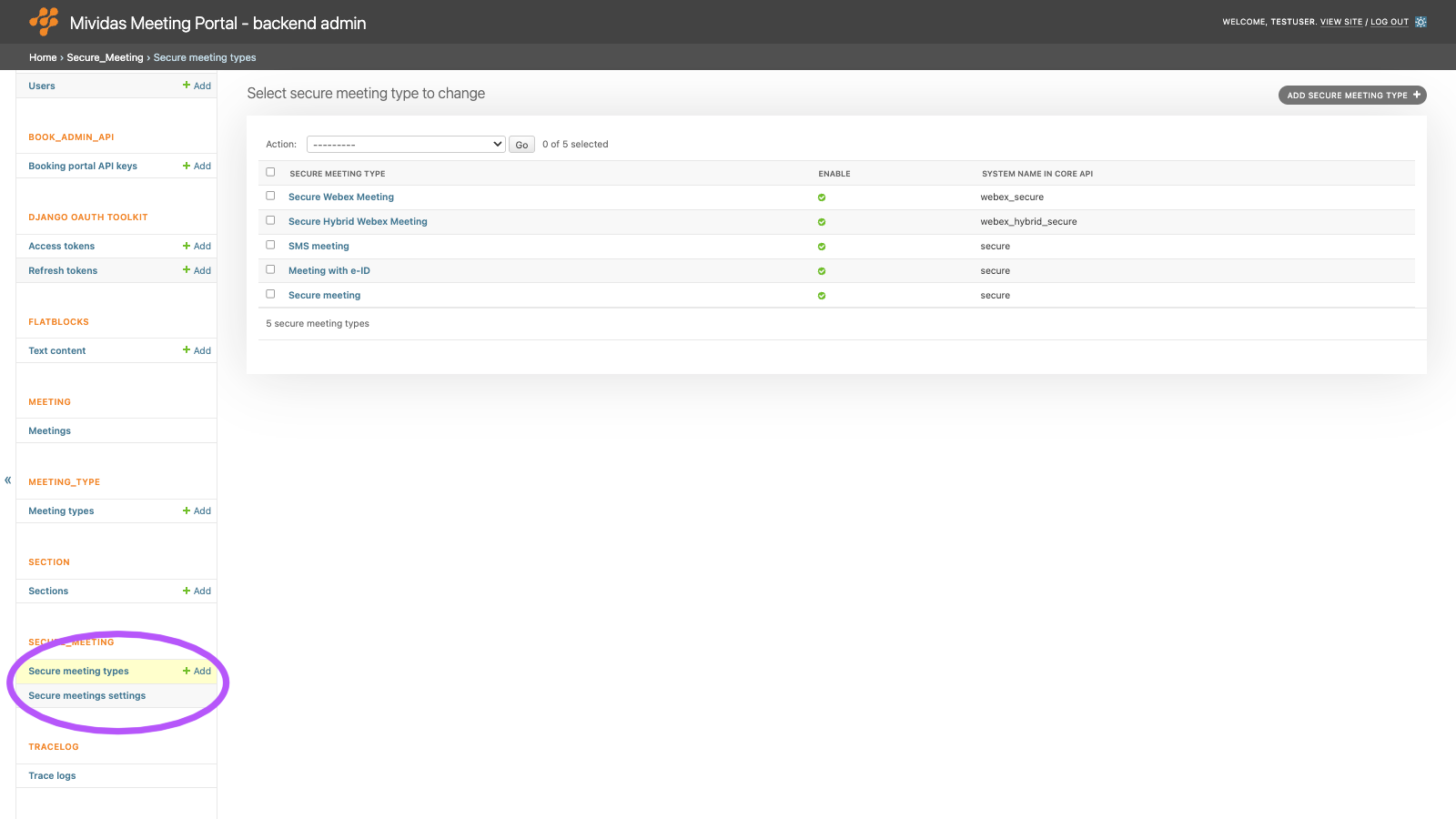
Configure the secure meeting types for Mividas Meeting Portal. In a secure meeting, every participant and moderator receives a personal invitation link and must sign in before they can see the connection details. Sign-in can be done via the Mividas Meeting Portal, Mividas Identify (organization login or eID, e.g., BankID), or with a code sent via SMS.
| Option | Description |
|---|---|
| Add secure meeting type + | Add a secure meeting type. |
Built-in secure meeting types
The built-in secure meeting types are created automatically. A deleted built-in type is created again with its default settings. To hide one, uncheck Enable instead.
| Meeting type | System name in Core API |
|---|---|
| Secure meeting | secure |
| Meeting with e-ID | secure |
| SMS meeting | secure |
| Secure Webex Meeting | webex_secure |
| Secure Hybrid Webex Meeting | webex_hybrid_secure |
List view

| Column | Description |
|---|---|
| Secure meeting type | The title of the meeting type, as shown on the booking button. |
| Enable | Shows if the meeting type is enabled. |
| System name in Core API | The meeting type key that is sent to Mividas Core. |
Add or edit a secure meeting type

| Field | Description |
|---|---|
| Title | The title of the meeting type. |
| Enable | When unchecked, the meeting type isn’t available in the portal. |
| System name in Core API | The meeting type key sent to Mividas Core. You can use a custom key to match a meeting type with its own settings in Mividas Core. |
| Icon | The icon on the scheduling button. Enter a Font Awesome 5 icon name without the fa- prefix, e.g. shield-alt or lock. See Available icons under MEETING_TYPE › Meeting types. |
| Numerically | Required. The sort order of the booking buttons on the start page. Lowest first. |
| Hide booking button on home page | Hides the booking button from the start page. The meeting type can still be used in other ways, e.g., from the Outlook add-in or the API. |
| Enable invitation-step in the scheduling wizard | Shows the steps for inviting participants after a meeting is scheduled. |
| Enable scheduled dialout-step in the scheduling wizard | Shows the steps for adding systems that are called automatically when the meeting starts. |
| Advanced settings | More settings in JSON format. Uses the same settings as Advanced settings under MEETING_TYPE › Meeting types. |
| Default login type moderator | The sign-in method that is preselected for moderators. |
| Selectable login modes, moderator | The sign-in methods the organizer can choose from for moderators, separated by commas. See Sign-in methods below. |
| Optional login method, moderator | Can be added for individual participants after the meeting is created. |
| Default sign-in type | The sign-in method that is preselected for participants. |
| Selectable login methods | The sign-in methods the organizer can choose from for participants, separated by commas. See Sign-in methods below. |
| Optional login method | Can be added for individual participants after the meeting is created. |
| Enable meeting agenda | Shows the agenda (instructions) tabs on the meeting page. |
| Enable separate agenda for moderator and participant | Lets the organizer write one agenda for moderators and another one for participants. |
| Enable sending invitations via another program | Shows the option to copy the personal invitation links and send them using another program, rather than via e-mail or SMS from the portal. |
| Replace sender address in moderator invitation email | Replaces the sender address (Reply-To and calendar organizer) in invitations to moderators. |
| Replace sender address in participant invitation email | Replaces the sender address (Reply-To and calendar organizer) in invitations to participants. |
| Number of days before meeting log is hidden in interface | The meeting log on the meeting page shows who has signed in. Entries older than this number of days are hidden. Default 7. Leave empty to show all entries. |
| Number of days before meeting log is deleted | Log entries older than this number of days are anonymized. The personal data in the invitations (name, e-mail address, mobile number, and identification) is also removed after this number of days has passed since the meeting ended. Leave empty to keep the data. |
| Heading, button | The title of the meeting type, shown on the scheduling button. |
| Help text in button | The help text shown on the scheduling button. |
| Title in meeting scheduling wizard | The heading of the scheduling form. If empty, Heading, button is used. |
| Description of form field for identification | The label of the identification field in the invitation form, e.g., Personal identity number. |
Sign-in methods
Use these values in the sign-in method fields. You can also enter only the first part of a value to include all methods of that kind. For example, eid includes both eid:identify and eid:validate. The default value is sso:portal, eid, sms.
| Value | Description |
|---|---|
none:none | No extended sign-in. |
portal:login | Regular login type in the booking portal. The person signs in with their ordinary portal account. |
sso:portal | SSO login in Identify or the booking portal. |
sso:login | Organization login via Mividas Identify. |
sso:all | Organization or eID login. |
sso:validate | Verify the person at the organization’s login. The signed-in person must match the identification entered in the invitation. |
eid:identify | Log in with eID via Mividas Identify. |
eid:validate | Verify the person at the eID login. The signed-in person must match the identification entered in the invitation. |
sms:code | SMS invitation with verification code. |
guest:code | Anyone who accesses the link can log in. |
You can change the names of the sign-in methods that users see under SECURE_MEETING › Secure meetings settings. The default invitation texts for secure meetings are edited under FLATBLOCKS › Text content.